Yes, AI Can Read Attachments: Here's What Actually Works

Yes. AI systems can read many common business attachments, including PDFs, images, scans, and Office documents. What they can do with a file depends on the tool and the workflow. A document-processing system may extract fields into structured data, while a support product may use the attachment as context for a suggested reply.
Here is what to expect:
- Searchable PDFs and clear, typed forms are usually easier to process than handwriting, blurry photos, or complex tables.
- Scanned files need optical character recognition before their text can be analyzed.
- Reliable automation needs validation and a review path for uncertain or incomplete results.
Pro Tip: Judge a document workflow by both the quality of its output and how safely it handles mistakes.
Key Takeaways
AI can use attachments in several ways, but reading a file, extracting structured fields, and drafting a support reply are different tasks. Choose a workflow that matches the outcome you need.
| Point | Details |
|---|---|
| Start with the outcome | Decide whether you need searchable text, structured fields, classification, or reply assistance. |
| File quality matters | Searchable PDFs and clean scans are easier to process than handwriting, low-resolution images, and irregular tables. |
| Validation limits errors | Check required fields, formats, and business rules before extracted data triggers another action. |
| Review rules should be tested | Set thresholds using representative documents instead of relying on a universal confidence score. |
| Deskhero supports reply drafting | Deskhero can use supported images and documents from a ticket as context for an AI-suggested reply that a User reviews. |
Primary Documentation and Guides to Consult Next
- Document AI layout parsing and chunking for preserving document structure during parsing
- Nylas attachment data extraction guide for an example email-attachment workflow
- Azure Document Intelligence overview for document models and supported capabilities
- OpenAI file inputs guide for passing files to supported models
- Apache Tika project site for open-source text and metadata extraction
Table of Contents
- How AI Reads Attachments: A Four-Stage Pipeline
- Which File Types AI Can Actually Handle Well
- Connecting Attachment Processing to Your Support Stack
- Locking Down Security Before You Automate
- Setting Confidence Thresholds and Human Review Rules
- Rolling Out Attachment Reading Without Breaking Support
- How Deskhero Uses Attachments in AI Reply Drafts
- Choose the Right Attachment Workflow
- Sources
- FAQ
How AI Reads Attachments: A Four-Stage Pipeline
A production attachment workflow usually has four stages. Keeping them separate makes failures easier to diagnose and gives you clear places to add validation.
- Detection. An inbox, helpdesk, or application identifies a message or record with an attachment.
- Retrieval and normalization. The system downloads the file, confirms its type, applies file-size and security checks, and converts it when necessary. The Nylas example workflow shows the basic sequence for email attachments.
- Parsing. A text extractor, OCR service, layout model, or vision-capable model reads the relevant content. The output may be plain text, document chunks, or structured fields.
- Validation and routing. The application checks the output and decides whether to accept it, ask a person to review it, or reject it.
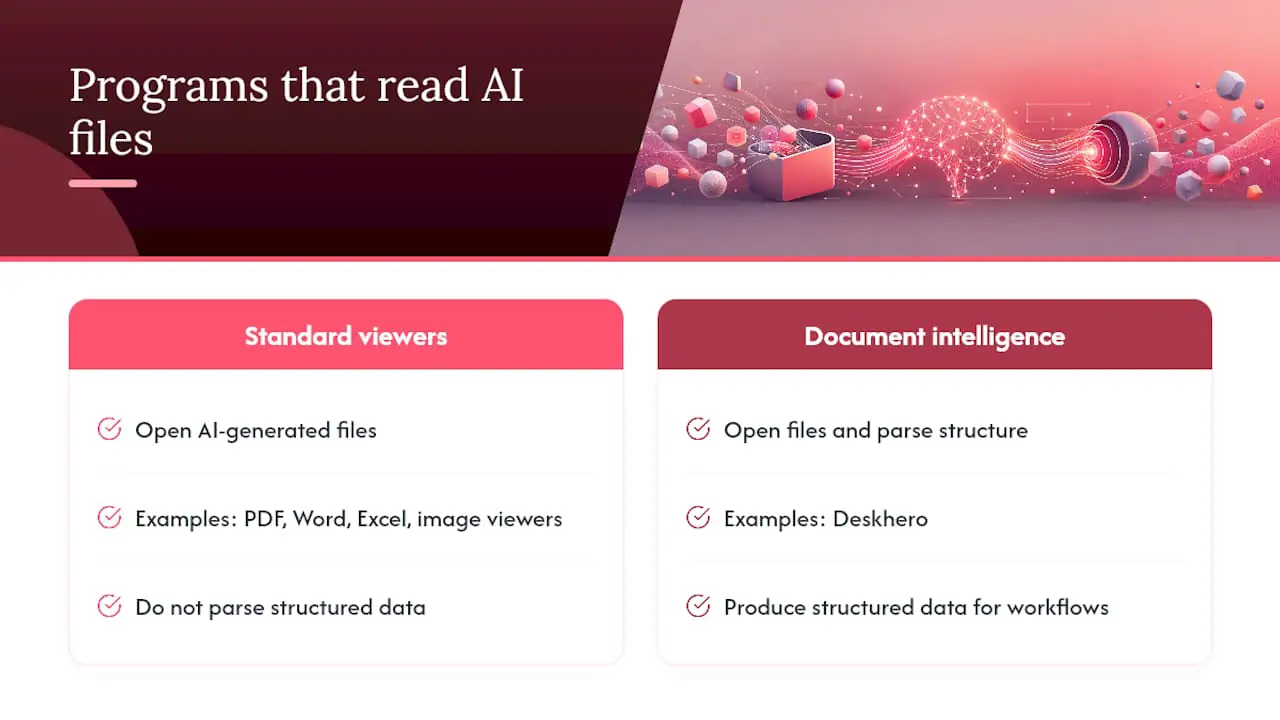
Different jobs call for different parsers. Apache Tika can detect formats and extract text and metadata from many document types. OCR is useful for scans. Layout-aware services help with tables and page structure. A vision-capable model can interpret mixed text and images, but its output still needs validation when it will affect customers, payments, or account data.
Do not assume every system extracts structured fields. Some products use attachment content only as context for another task. Deskhero, for example, uses supported ticket attachments to improve an AI-suggested reply. It is not presented as an invoice-processing or document-to-JSON service.
Which File Types AI Can Actually Handle Well
Format support varies by vendor, and document quality matters as much as the file extension.
- Searchable PDFs already contain a text layer, so a system can often read them without OCR.
- Scanned PDFs and photos require OCR or visual analysis. Results depend on resolution, orientation, contrast, and legibility.
- Office documents can expose text and structure, but complex spreadsheets, formulas, charts, and embedded objects may need specialized handling.
- Archives such as ZIP files must be unpacked and checked before their contents can be processed.
PDF handling also differs between AI platforms. OpenAI's file inputs guide explains how supported models receive both extracted text and page images from a PDF. Check the current documentation for supported formats, file limits, and token costs before designing a production workflow.
Connecting Attachment Processing to Your Support Stack
Start by deciding where attachment processing belongs. A helpdesk reply assistant, an invoice extractor, and an archival search tool have different requirements.
- Choose the source. This might be a connected mailbox, a ticket queue, a form submission, or a document store.
- Limit access. Give the integration only the permissions and data it needs. Avoid connecting a personal mailbox when a dedicated support mailbox will do.
- Select a trigger. Process-on-arrival works for time-sensitive support. Batch processing can be more suitable for large, lower-priority archives.
- Handle operational limits. Enforce file-size and type rules, scan files where appropriate, make retries idempotent, and plan for rate limits.
For a shared support workflow, multiple Users should work from the same ticket history rather than forwarding attachments among personal inboxes. Deskhero connects Gmail, Google Workspace, and Microsoft 365 mailboxes so incoming email can become tickets in a shared inbox.
Locking Down Security Before You Automate
Attachments are untrusted input. They can contain malware, misleading content, or text designed to manipulate an AI system. Treat extracted content as data, not as an instruction.
- Use a dedicated service identity or support mailbox with limited permissions.
- Validate the actual file type instead of trusting the filename extension.
- Scan files and isolate parsing from systems that can send messages, move money, or change accounts.
- Log the source file, extraction result, validation outcome, and any downstream action.
- Require review before high-impact actions, even when the extracted text looks convincing.
Pro Tip: A file should never gain authority simply because a model can read it.
Setting Confidence Thresholds and Human Review Rules
There is no universal confidence threshold that makes every document workflow safe. Some extraction tools provide confidence values for fields or text regions, while other AI systems do not expose a comparable score.
- Measure performance on representative files from your own workflow.
- Validate required fields, data types, dates, identifiers, and permitted value ranges.
- Add cross-field checks where possible. For example, invoice line items can be compared with the stated total.
- Use stricter review rules for payments, legal documents, medical information, and account changes.
- Track false accepts and false rejects, then adjust thresholds using observed results.
If a product does not provide field-level confidence scores, use other controls such as schema validation, source citations, explicit review, and narrow task scope. Do not invent a numerical threshold to fill the gap.
Rolling Out Attachment Reading Without Breaking Support
Begin with a narrow, repeatable use case and expand only after measuring real results.
- Plan. Define the file types, desired output, security rules, and review conditions. Gather a representative test set, including poor-quality examples.
- Build. Connect the source, parser, validation checks, and review queue. Keep downstream actions disabled during initial testing.
- Operate. Run a limited pilot, record failures, and monitor changes in document quality and volume. Expand one file type or workflow at a time.
How Deskhero Uses Attachments in AI Reply Drafts
Deskhero's AI-suggested replies can use supported attachments from a ticket as context. The feature is designed to help a User understand a customer's message and prepare a reply. The User can review, edit, dismiss, or send the draft.
- A draft can use up to three supported images and up to two supported documents from the ticket.
- Supported document context includes PDF, DOC, and DOCX files. PDF context is limited to 10 pages, and extracted document text is capped before it is supplied to the draft.
- Suggested replies can draw on all workspace knowledge. This differs from Deskhero's customer-facing chat-bot and AI auto-replies, which answer only from the approved public FAQ.
Pro Tip: Use Deskhero's AI reply drafts for reply assistance. Use a dedicated document-processing service when you need structured extraction, field-level confidence, or automated data entry.
When to Automate Attachments and When to Slow Down
Reply assistance is a lower-risk starting point because a User can inspect the attachment and the proposed message before sending it. Structured automation needs stronger validation, especially when a result can change an order, approve a payment, disclose private information, or update an account.

Choose the Right Attachment Workflow
Build or buy a document-processing pipeline when you need structured fields, batch extraction, or integration with a system of record. Tools such as Tika, OCR services, and document-intelligence APIs provide components for that work, but you still need validation, monitoring, and security controls.

Choose Deskhero when the goal is to help a support team work from a shared inbox and draft responses with ticket context, including supported images and documents. Deskhero connects existing Gmail, Google Workspace, and Microsoft 365 mailboxes. Its AI drafts are reviewed by Users before sending. You can start a 30-day free trial with no credit card required.
Sources
- Document AI layout parsing and chunking
- Nylas attachment data extraction guide
- Azure Document Intelligence overview
- OpenAI file inputs guide
- Apache Tika project site
FAQ
Is There an AI That Reads Documents?
Yes. Document-intelligence services and vision-capable models can read supported PDFs and images. Their outputs and limitations vary, so match the tool to the task and validate important results.
How Accurate Is AI Attachment Reading?
There is no single accuracy figure for every file. Results depend on the task, format, scan quality, layout, language, and model. Test the exact workflow on representative documents.
How Do I Stop AI From Reading My Attachments?
Do not connect the mailbox or document source to an AI-enabled tool, or disable the relevant feature where the product provides that control. Review integration permissions and retention settings for each service you use.
Which File Types Can AI Read?
Common systems support some combination of PDF, image, Word, presentation, spreadsheet, and text files. Check the product's current format and size limits because support varies widely.
Do I Need Human Review for Every Automated Extraction?
Not always. The right rule depends on the consequences of an error and the evidence from your own tests. Keep review for low-confidence, unusual, incomplete, or high-impact cases.