Auto Replies for Support Teams: Templates and Setup Guide

Auto replies for support are automated messages that confirm receipt, set expectations, and tell the customer what happens next. A useful acknowledgment usually includes three elements: confirmation that the request arrived, a realistic response window, and a next step such as a ticket reference or support resource.
- Acknowledgment: Confirm that the message was received.
- Realistic timeframe: Give a range your team can reliably meet.
- Next step: Include a ticket number, relevant resource, or urgent escalation route.
Start with one short acknowledgment on your main support channel. Test it with an external address before enabling it for customers.
Key Takeaways
Good support auto replies reduce uncertainty without pretending that an automated acknowledgment is a human response.
| Point | Details |
|---|---|
| Three core elements | Confirm receipt, set a realistic response window, and provide a useful next step. |
| Loop prevention | Exclude automated senders and use the frequency and suppression controls available in your platform. |
| Channel-aware writing | Email can carry more detail, while SMS and chat need shorter messages. |
| Measure the human outcome | Track the time to a human reply, repeated contacts, and whether linked resources help. |
| Deskhero auto replies | Deskhero supports group-scoped static replies and AI replies grounded in approved Public FAQ content. |
Table of Contents
- How auto-reply rules and triggers actually work
- When auto-replies help and when they hurt
- Message best practices: content, tone, and accessibility
- Ready-to-use auto-reply templates for common support scenarios
- Implementation checklist and rule-configuration steps
- How to measure auto-reply effectiveness and iterate
- Common mistakes, loop prevention, and how to avoid them
- How Deskhero implements safe, accurate auto-replies
- Security and privacy when configuring auto-replies
- How to integrate auto-replies with other support channels and CRM systems
- The detail most rollout guides skip
- Deskhero gives you auto-replies that stay accurate and on-brand
- Sources
- FAQ
How auto-reply rules and triggers actually work
An automated response begins with a trigger, such as a new email, form submission, or chat request. Some platforms also support conditions based on a channel, label, priority, or business hours. Microsoft documents scheduled automatic replies for Outlook, while helpdesk products expose their own rule controls.
Frequency and suppression settings determine whether a useful acknowledgment becomes noise. Plain's auto-response documentation, for example, describes ordered conditions, a configurable delay, and cancellation when a team member replies before the delay expires. Available controls vary by product, so do not assume that every helpdesk supports the same delay or suppression behavior.
Exclude messages that should not receive an automated response, especially bounces, delivery receipts, known no-reply addresses, and messages created by your own team. If two systems can respond to the same address, decide which one owns the acknowledgment.
Pro Tip: Use a short delay only if your platform can cancel the automated response when a person replies first. Test the exact behavior rather than relying on a generic default.
When auto-replies help and when they hurt
Auto replies are most useful when a customer needs confirmation but a person cannot respond immediately. Common uses include:
- Ticket acknowledgment: Confirm that an email or form submission arrived.
- After-hours notice: State when the team returns and how urgent issues should be handled. Chaindesk's examples emphasize a clear timeframe and next step.
- High-volume notice: Explain that response times are longer than normal without making an unrealistic promise.
- Order or appointment confirmation: Confirm that a separate transactional workflow completed.
- Incident update: Point customers to an official status page when an incident is already confirmed.
Avoid automatic replies during an active conversation, for sensitive issues that need immediate judgment, or when the incoming message is itself automated. An acknowledgment should not imply that the request has been solved or reviewed by a person.
Pro Tip: If your helpdesk supports labels or a dedicated reply type, use them to distinguish automated acknowledgments from human responses in reports.
Message best practices: content, tone, and accessibility
A well-written automated response lowers uncertainty, sets an expectation, and points to a useful next step. Fullview's collection of auto-reply examples recommends concise messages with a response timeframe, ticket reference, and relevant support options.
Consider including:
- Acknowledgment: "We received your message and created ticket #[TICKET_ID]."
- Response window: Use the range your team actually meets.
- Relevant resource: Link to a status page or a specific self-service answer, not a generic home page.
- Escalation route: Give one only if the route is monitored and intended for customers.
- Timezone and business days: Clarify these when they affect the promised response window.
Match the tone to the situation. A routine acknowledgment can be warm and brief. A billing dispute or account-security issue deserves calmer, more careful language. Use short paragraphs, descriptive link text, and plain language so the message is easy to scan.
SMS messages should be especially compact. Consent, identification, and opt-out requirements depend on the jurisdiction and message type. Sakari's SMS guidance includes opt-out language where required, but your legal and compliance teams should confirm the rule for your use case.
Keep sensitive customer and account data out of acknowledgments unless your security review has approved the channel and the specific fields.
Ready-to-use auto-reply templates for common support scenarios
Replace every bracketed field before publishing. Remove any line your workflow cannot reliably support.
Standard ticket acknowledgment (email)
Hi [FIRST_NAME], thanks for contacting [COMPANY]. We received your request and created ticket #[TICKET_ID]. Our team usually replies within [RESPONSE_RANGE] during [SUPPORT_HOURS]. If you can add relevant screenshots or steps to reproduce the issue, reply to this email and they will be added to the ticket.
SMS or chat variant: "We received your message. Reference: [TICKET_ID]. Our team will reply within [RESPONSE_RANGE]."
After-hours auto-reply (email)
Thanks for contacting [COMPANY]. Our support team is currently offline and returns at [RETURN_TIME] [TIMEZONE]. We received your request as ticket #[TICKET_ID]. For a confirmed service incident, check [STATUS_URL]. We will reply after the team returns.
High-volume delay notice
We received ticket #[TICKET_ID]. Our current response time is longer than usual, and we expect to reply within [EXTENDED_RANGE]. You can add details by replying to this message. There is no need to open another ticket for the same issue.
Incident update
We received your report about [SERVICE_NAME]. A current incident is listed at [STATUS_URL], where we will publish confirmed updates. Your ticket reference is #[TICKET_ID].
Urgent issue acknowledgment
We received your request as ticket #[TICKET_ID]. If it meets the urgent-support criteria in [POLICY_URL], contact [APPROVED_ESCALATION_CHANNEL]. Otherwise, our team will respond within [STANDARD_RANGE].
These are starting points, not universal promises. The response window, escalation path, and linked resources should reflect your actual operation.
| Channel | Best use | Include | Avoid |
|---|---|---|---|
| Ticket acknowledgment and service notices | Reference, timeframe, next step | Long explanations and sensitive data | |
| SMS | Brief, consented updates | Identity, concise status, required opt-out text | Multiple links and account details |
| Chat | Immediate acknowledgment | One clear next step | Pretending a person has reviewed the request |
| Social DM | Initial acknowledgment | A secure follow-up route | Private account information |
Implementation checklist and rule-configuration steps
Turn a template into a live rule with a controlled rollout:
- Define the purpose. Decide whether the message acknowledges receipt, explains availability, or reports a confirmed incident.
- Choose one channel. Start where your team receives the most support requests.
- Write the message. Use the required content only and make each placeholder explicit.
- Set the trigger. Match the rule to the exact event and channel.
- Configure frequency. Use the product's available loop and duplicate controls.
- Define exclusions. Exclude internal messages, bounces, automated senders, and any sensitive workflows.
- Check reporting. Confirm how the platform records automated and human responses.
- Test externally. Send test messages from outside the company and inspect both the customer email and ticket timeline.
- Check failure paths. Test missing placeholders, disabled resources, and replies from no-reply addresses.
- Roll out gradually. Review early tickets before expanding the rule.
Testing checklist before deployment:
- The trigger fires only for the intended source and channel.
- All placeholders resolve to correct values.
- A human reply does not produce an unintended duplicate response.
- Automated senders and bounces do not create loops.
- The ticket clearly distinguishes the automated message from a human reply.
Pro Tip: Keep a rollback step in the launch checklist. You should be able to disable the rule quickly without changing unrelated support settings.
How to measure auto-reply effectiveness and iterate
Measure whether the auto reply improves the support experience, not simply whether it was sent.
| Metric | What to track | Why it matters |
|---|---|---|
| First human response time | Time from ticket creation to the first reply by a team member | Separates acknowledgment speed from actual support speed |
| Repeat contact rate | Additional messages or duplicate tickets before a human response | Shows whether expectations were clear |
| Self-service use | Visits to the specific resources linked in the message | Shows whether the next step was useful |
| Delivery failures | Bounces, blocked sends, and invalid destinations | Reveals operational and data-quality problems |
| Escalation use | Requests that use the urgent route | Helps detect unclear or overused escalation instructions |
Compare results before and after the rollout over a period with enough ticket volume to be meaningful. Review samples of the conversations as well as aggregate metrics. A lower repeat-contact rate is not useful if the message sends customers to an irrelevant resource.
Pro Tip: Keep automated and human response times separate. An instant acknowledgment should not hide a slow human follow-up.
Common mistakes, loop prevention, and how to avoid them
The most damaging errors usually come from configuration rather than wording.
- Reply loops: Two systems answer each other. Assign one system to send the acknowledgment and exclude automated senders.
- Overpromising: The message states a response time the team cannot meet. Use a realistic range and review it when staffing or volume changes.
- Duplicate replies: A mailbox and helpdesk both send an acknowledgment. Disable the overlapping rule.
- False resolution: Reporting treats an automatic acknowledgment as completed support. Track the first human reply separately.
- Unsafe disclosure: The message includes private account or order details. Keep acknowledgments minimal and move sensitive work to an approved channel.
Check SLA behavior. Some platforms count an automatic reply as a first response. Confirm how your reports and policies treat it so an acknowledgment does not conceal an untouched ticket.
Ask a Manager's critique of a vague away message illustrates a broader lesson: uncertainty without a clear next step can be less helpful than a short, honest statement of availability.
How Deskhero implements safe, accurate auto-replies
Deskhero provides AI and static auto replies for inbound email tickets. The configuration is scoped to one or more groups.
- Approved FAQ grounding: Customer-facing AI auto replies use only approved Public FAQ entries. They do not use resolved tickets, Internal Knowledge Base articles, or Shopify order data as direct sources.
- Validation before sending: A second AI check determines whether the drafted answer addresses the customer's question.
- Static fallback: A fixed reply can be used on its own or as a fallback when AI is enabled.
- Visible automation: Auto replies are labeled and recorded in the ticket timeline, with a corresponding indicator in the ticket list.
- Loop protection: Deskhero limits auto replies to 10 per address per hour and skips inbound auto replies and bounces.
- Source exclusions: Auto replies are not sent for tickets created manually, through imports, or by the chat-bot.
AI auto replies unlock after the workspace has 100 approved Public FAQ items. Deskhero does not provide scheduled or business-hours windows for auto replies, so an after-hours message must be handled through another supported part of your email workflow. See the Deskhero auto-replies feature page for an overview.
Pro Tip: Review the approved Public FAQ before enabling AI auto replies. Customer-facing answers are only as current as the approved content that grounds them.
Security and privacy when configuring auto-replies
Automatic messages can expose information at scale, so use the minimum data needed to identify the request.
A ticket reference is usually safer than an account number, payment detail, full order record, or other private information. Do not assume that email, SMS, chat, and social messages have the same security properties.
Review every personalization token. Confirm its source, formatting, fallback behavior, and visibility to the recipient. If a sensitive action is required, direct the customer to your approved authenticated workflow.
For SMS, consent and opt-out duties vary by message type and jurisdiction. Have qualified counsel review the workflow where legal requirements apply.
Limit template and rule editing to the people responsible for support operations. Keep a change log, test with non-production data, and review the first messages after any update.
How to integrate auto-replies with other support channels and CRM systems
When several systems can create or answer support requests, define one source of truth for the ticket and one owner for the acknowledgment. Document how identifiers, status changes, and customer replies move between systems.
For Deskhero workspaces connected to Shopify, Users can view live customer and order information in the ticket sidebar. The synced Shopify product catalog can also inform draft suggestions for Users. Deskhero's customer-facing AI auto replies remain restricted to approved Public FAQ content and do not insert live order data.
Deskhero also provides a REST API for tickets, replies, users, groups, forms, knowledge bases, automations, and other product surfaces. It does not provide outbound webhooks, so integrations that need updates must poll the API. API access does not change the grounding rules for customer-facing AI auto replies.
Before connecting any CRM or messaging platform, test duplicate creation, retry behavior, failed sends, and the ownership of customer consent. A clean integration should not produce two ticket numbers or two acknowledgments for one request.
The detail most rollout guides skip
The overlooked part of an auto-reply rollout is the queue process that follows the acknowledgment.
Make sure an automated first touch does not remove the ticket from the team's working view or make it look complete. Define who owns newly acknowledged tickets, how overdue requests surface, and how a User can tell whether a person has responded.
Review real conversations soon after launch. Check that the stated timeframe is still accurate, the next step is relevant, and no customer is being sent in circles. An honest promise followed by a timely human reply is more valuable than a polished message attached to an unclear workflow.
Deskhero gives you auto-replies that stay accurate and on-brand
Deskhero combines a fixed auto-reply option with AI auto replies grounded in approved Public FAQ content. The AI answer can be placed inside a branded template with workspace, group, and date placeholders, and a static fallback can cover questions the approved FAQ cannot answer.
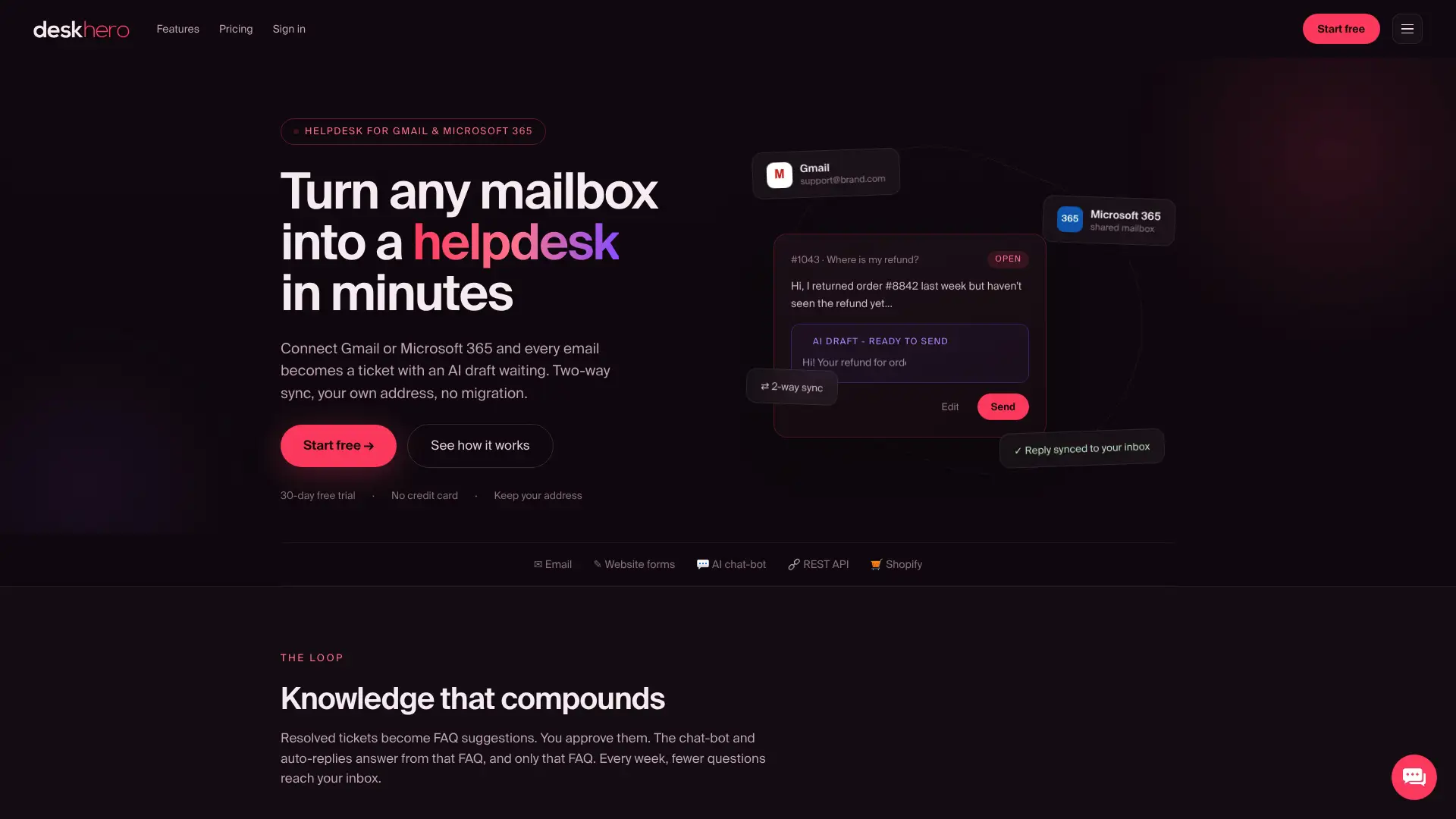
Connect a Gmail, Google Workspace, or Microsoft 365 mailbox and keep replies on your company's email address. Auto replies are opt-in, group-scoped, labeled, and logged. New workspaces can start with a 30-day free trial, with no credit card required.
Sources
- Set up auto-reply (out of office) | Microsoft Support
- Auto-responses | Plain Docs
- 50+ Auto Reply Messages for Customer Service in 2026 | Fullview
- Customer Service Auto Response: Examples, Templates, and Best Practices
- My colleague's auto-reply says she might never answer your email | Ask a Manager
- Using Auto Reply Messages for Customer Service | Sakari
FAQ
What is a good example of an auto-reply in customer support?
"Hi [Name], we received your message and created ticket #[ID]. Our team usually responds within [REALISTIC_RANGE] during [SUPPORT_HOURS]. You can add more details by replying to this email." It confirms receipt, sets an expectation, and explains the next step.
What should every good automatic reply include?
Include confirmation that the message arrived, a response window your team can meet, and a useful next step. Add a ticket reference, timezone, or escalation route only when your workflow supports it.
How do you prevent auto-reply loops?
Choose one system to send the acknowledgment, exclude no-reply addresses and bounces, and use the frequency or suppression controls available in your platform. Test with another automated mailbox before launch.
What is a good after-hours auto-reply message?
State when the team returns, include the timezone, confirm that the request was received, and provide a monitored escalation route only when one exists. Avoid vague promises.
How does Deskhero handle auto-replies safely?
Deskhero grounds customer-facing AI auto replies only in approved Public FAQ content, validates that the answer addresses the question, labels and logs automatic messages, and applies a limit of 10 auto replies per address per hour. It skips inbound auto replies, bounces, and tickets created manually, through imports, or by the chat-bot.