Internal Knowledge Base for Teams: Build One People Use

An internal knowledge base is the centralized, searchable place where your team keeps procedures, runbooks, policies, onboarding steps, and past decisions, so nobody has to ask the same question twice. If you already know that and want to act on it, here’s where to start this week.
- Audit the last month of Slack and email threads for your top 20 repeated questions.
- Assign one named owner for each top-level category before you write a single article.
- Launch a 20-article pilot covering only those top questions, then expand from there.
Do those three things and you’ll see the payoff fast: fewer interruptions pulling people out of deep work, and new hires who stop tapping their neighbor’s shoulder every hour. The rest of this guide walks through why it works and how to build it properly.
Key Takeaways
A useful internal knowledge base starts with a named owner per category, a 20-article pilot built from real questions, and a 90-day review cycle that keeps content trustworthy.
| Point | Details |
|---|---|
| Start with real questions | Audit the last 30 to 60 days of Slack and email for your top 20 repeated questions before writing anything. |
| Name an owner per category | Assign one specific person, not a team, as the accountable owner for each top-level category. |
| Keep the taxonomy small | Use a small set of function-based top-level categories instead of mirroring your org chart. |
| Set a review cadence | Put a 90-day “last reviewed” cycle on every article, with immediate review for policy changes. |
| Pair the KB with AI safely | Deskhero's chatbot and AI auto-replies answer only from approved public FAQ items. These features are opt-in, and automatic actions are labeled and logged. |
Table of Contents
- Why an Internal Knowledge Base Matters More Than It Gets Credit For
- What Belongs in Your Knowledge Base First
- How to Create and Structure an Internal Knowledge Base
- Choosing the Right Knowledge Base Tool Without Overthinking It
- Making Answers Actually Findable
- Keeping the Knowledge Base Trustworthy Over Time
- Using AI Without Letting It Guess
- Deskhero’s Approach to a Living Knowledge Base
- The Traps Nobody Warns You About
- Try an Integrated Helpdesk With a Built-In Knowledge Base
- Sources
- FAQ
Why an Internal Knowledge Base Matters More Than It Gets Credit For
The case for a company knowledge base isn’t abstract. A Gartner survey found that a significant portion of digital workers struggle to find the information they need to do their jobs. That’s nearly half your workforce, right now, quietly losing time hunting for an answer that already exists somewhere in an old Slack thread or someone’s inbox.
By the numbers: A large portion of digital workers can’t reliably locate the information they need to do their job. Every unanswered “where’s the doc for X?” question is that statistic playing out in real time on your team.
A working internal documentation system attacks that problem directly. It cuts time-to-answer because people search instead of ask. It cuts context-switching because a subject matter expert doesn’t get pulled out of their work to repeat something they’ve already explained five times. It shortens onboarding, because a new hire can find the deployment checklist without waiting on a senior engineer’s calendar.
The benefits show up in a few predictable places:
- Faster ramp time for new hires, since week-one questions have written answers instead of tribal knowledge locked in someone’s head.
- Fewer repeat tickets or Slack pings, because the answer lives somewhere searchable instead of in a closed thread.
- Less context-switching for senior staff, who stop functioning as human search engines.
- More consistent answers, since everyone pulls from the same source instead of five slightly different verbal explanations.
Run a rough calculation for your own team: if five people each spend 20 minutes a day answering questions that a knowledge base for teams could handle instead, that’s over eight hours a week of senior time recovered. Multiply that across a quarter and the case builds itself, without needing a single new hire.
What Belongs in Your Knowledge Base First
Not every internal documentation tool needs to hold everything on day one. Trying to capture the entire company at once is how most knowledge base projects stall before launch. Start with the content types that actually stop people from interrupting each other.
Prioritize in this order:
- Runbooks and troubleshooting guides for the recurring fires (a server restart procedure, a refund workflow, a common bug fix).
- Onboarding checklists for the first week and first month.
- Policies that get asked about constantly (PTO, expense approval, remote work rules).
- How-to articles for repeatable tasks (how to request access, how to submit a purchase order).
- Decision records explaining why something was chosen, so nobody re-litigates it six months later.
- Glossaries for internal jargon and acronyms that confuse new hires.
- FAQs built directly from your most-asked support and internal questions.
- Templates for the documents your team writes repeatedly.
A few example page shapes worth stealing:
- SOP or runbook template: trigger condition, step-by-step actions, who to escalate to, expected resolution time.
- First-week onboarding checklist: accounts to set up, people to meet, first deliverable, who to ask if stuck.
- Quick policy page: one paragraph summary at the top, followed by the full detail, followed by an exceptions section.
Every article, regardless of type, needs the same metadata sitting at the top: an owner, a last reviewed date, a status tag (current, needs review, archived), and a handful of aliases so search catches the way people actually phrase the question, not just the official term.
How to Create and Structure an Internal Knowledge Base
Building an employee knowledge database that survives past month three comes down to sequencing. Skip the audit and jump straight to writing, and you’ll fill the thing with articles nobody searches for. Here’s a phase-by-phase plan you can run in about four weeks.
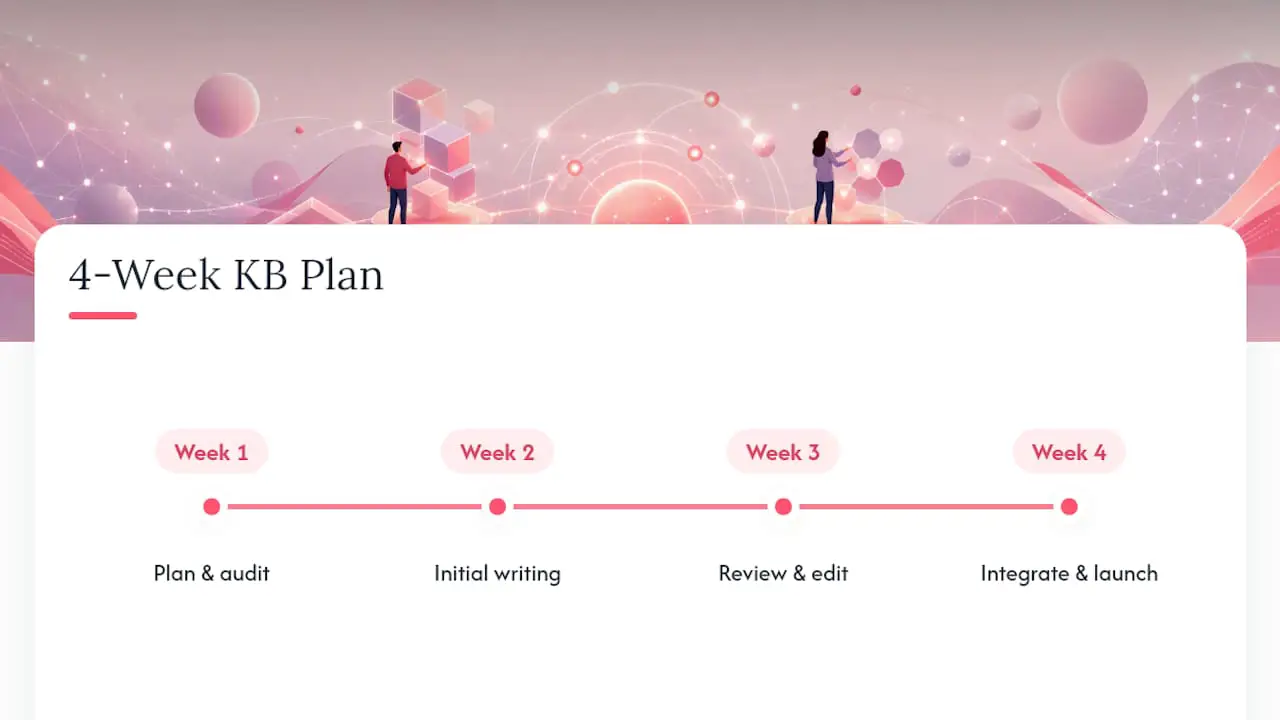
Phase 1: Audit (Days 1 to 5)
Pull the actual questions people ask. Search your last 30 to 60 days of Slack, email, and support tickets for repeated themes. The most reliable starting point is the top 20 questions employees actually ask, not a hypothetical list of everything your department could theoretically document.
- Who: whoever owns the project, pulling from three or four department leads.
- What: a ranked list of the 20 to 30 most repeated questions.
- Deliverable: a spreadsheet with question, frequency estimate, and a proposed owner.
- Acceptance criteria: every question on the list has come up at least twice in the audit window.
Phase 2: Taxonomy and Ownership (Days 6 to 10)
Resist the urge to build an elaborate category tree. A workable taxonomy uses a small number of top-level categories organized by function. Think “Getting Started,” “IT and Access,” “HR and Policies,” and “Customer Support Procedures,” rather than mirroring your org chart. Assign one named owner per top-level category. Not a team. A person. Ownership without a name attached is how articles rot.
- Who: category owners, confirmed in writing.
- What: a concise taxonomy of function-based top-level categories.
- Deliverable: a taxonomy map with an owner’s name next to each branch.
- Acceptance criteria: every category has exactly one accountable owner who has agreed to the role.
Phase 3: Build the Pilot (Days 11 to 20)
Write the 20-article pilot straight from your audit list. Use the templates from the previous section so every article has the same shape. Don’t migrate your old wiki wholesale here. Selectively pull over content that’s actually been used or referenced recently, rewrite anything that reads as stale or half-finished, and archive the rest instead of dragging it forward out of habit.
- Who: category owners, each writing or assigning their own articles.
- What: 20 finished articles matching the pilot’s top questions.
- Deliverable: a published pilot section, reviewed by at least one person outside the writer’s team.
- Acceptance criteria: a test reader can find and understand each article in under two minutes without asking a follow-up question.
Phase 4: Integrate Search and Soft Launch (Days 21 to 28)
Connect the knowledge base to wherever your team already spends its day, whether that’s Slack, Microsoft Teams, or your ticketing tool. A KB that requires opening a separate tab is a KB people forget exists. Soft launch to one department first, gather feedback, fix the obvious gaps, then open it company-wide.
- Who: the project owner plus one or two pilot department volunteers.
- What: search integration, plus a short internal announcement.
- Deliverable: usage data from the first two weeks and a list of feedback items.
- Acceptance criteria: at least half the pilot group has used the KB unprompted within the first ten days.
Pro Tip: Launch narrower than feels comfortable. A tight 20-article pilot that actually gets used builds far more internal trust than a sprawling 200-article dump that gets ignored.
Test findability before you call it done. Hand five real questions to someone who wasn’t involved in writing the content and time how long it takes them to find the answer. If it takes longer than a minute, your taxonomy or your tagging needs work, not more articles.
Choosing the Right Knowledge Base Tool Without Overthinking It
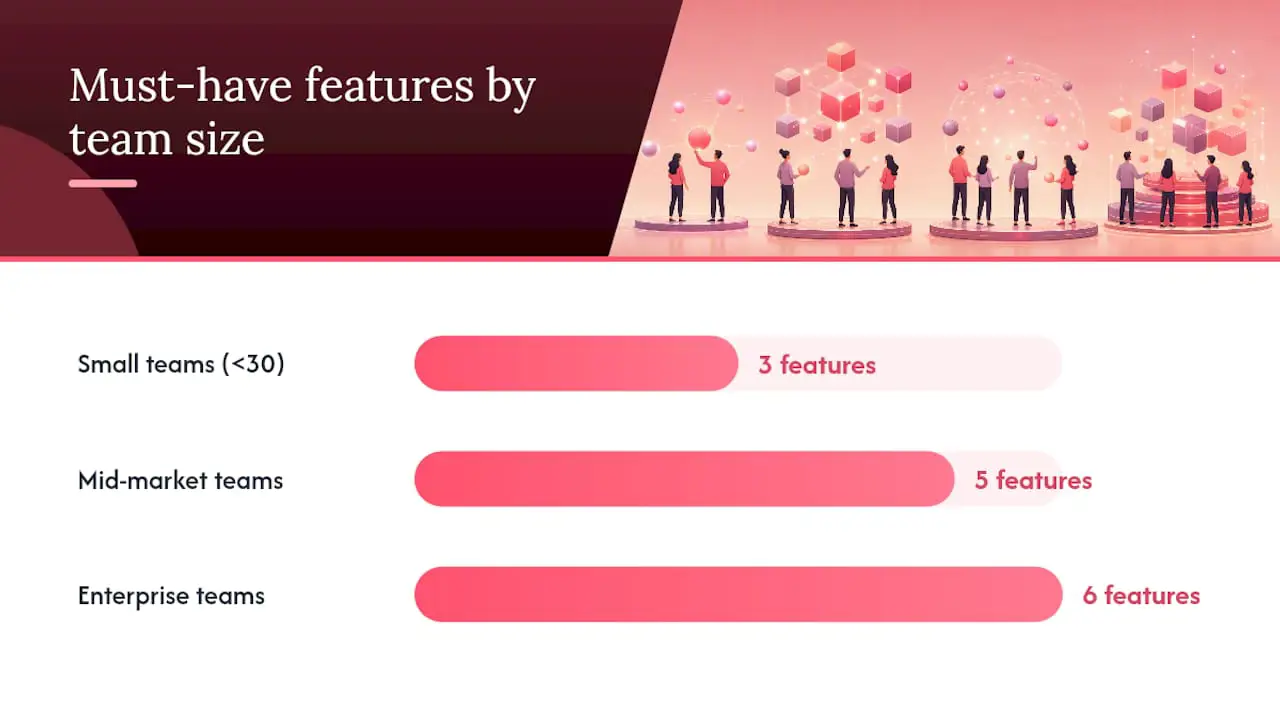
Tool selection paralyzes a lot of teams. The fix is a short checklist and a clear sense of what’s a must have versus a nice to have for your size.
Run any candidate knowledge management platform through this checklist:
- Search quality, including typo tolerance and synonym matching, not just exact keyword hits.
- SSO and granular permissions, so sensitive HR or finance pages aren’t visible to everyone.
- Integration with Slack or Microsoft Teams, so answers surface where people already talk.
- An API or clean export, especially if you plan to connect AI assistants later.
- Analytics, showing which articles get viewed, which searches return nothing, and where people give up.
- A comfortable editor experience, because a clunky writing tool guarantees fewer contributions.
- Content ownership features, like assignable reviewers and visible last-updated dates.
Score each candidate against your own size, not a generic feature list:
- Small teams (under 30 people): search, permissions, and editor experience are must haves. Deep analytics and API access are nice to have.
- Mid-market teams: add Slack or Teams integration and basic analytics to the must-have list.
- Enterprise teams: API access, SSO, and granular permissions move from nice to have into must have, since compliance and scale demand them.
When comparing products, test search quality and admin controls with your own content and permission model instead of relying on the length of a sales-page feature list. If you plan to layer AI on top eventually, favor tools that expose markdown or a clean API, since structured content is easier for retrieval systems to use consistently than a pile of inconsistent formatting.
Making Answers Actually Findable
A knowledge base nobody can find is just a filing cabinet with better branding. Discoverability is where most internal documentation tools quietly fail, and it’s fixable with a handful of concrete habits.
Tag for the way people actually search, not the way you’d write a formal title. If your billing policy article is titled “Accounts Receivable Procedures” but everyone searches “how do I get a refund,” add that phrase as an alias. Build in common misspellings and abbreviations too. Then get the content out of the KB’s own search bar and into the tools people live in daily, whether that means a Slack bot that answers from KB articles directly or a widget inside your ticketing system.
Keep the top-level taxonomy organized by function, use the same article type consistently within each category, and kill duplicate pages the moment you spot them; two versions of the same policy answering slightly differently is worse than no page at all.
Three metrics tell you whether search is actually working:
- Zero-result rate: how often a search returns nothing, which flags missing content or bad tagging.
- Search-to-article click-through rate: whether people click a result or give up and ask a person instead.
- Time-to-first-answer inside Slack or your chat tool, tracking whether an automated or KB-sourced answer beats a human response.
If your zero-result rate is climbing, that’s a taxonomy and tagging problem before it’s a content problem. Related to the earlier point about findability: nearly half of workers already report trouble finding information at all, so a high zero-result rate on your own KB search is that same failure happening inside a tool meant to fix it.
Keeping the Knowledge Base Trustworthy Over Time
A knowledge base decays the moment nobody’s assigned to watch it. Governance is what separates a KB that’s useful in year two from one that quietly turns into a graveyard of outdated screenshots.
Define three roles clearly:
- A directly responsible individual (DRI) per category, the same named owner from your taxonomy phase, accountable for accuracy.
- Editors, who can update content without needing the DRI’s sign-off for minor fixes.
- Reviewers, who check for accuracy on a set schedule rather than waiting for someone to notice a problem.
Some teams add a knowledge ops committee once the KB grows past a few hundred articles, but for most organizations a clear DRI per category is enough structure to start.
Put a review cadence on every article, not just a launch date. A 90-day review cycle works well for most operational content: each article carries a “last reviewed” field, and anything that crosses 90 days without a review gets flagged for its DRI. Content tied to a policy change gets an immediate, out-of-cycle review instead of waiting for its slot.
- Track the percentage of articles past their review date, which flags neglect before readers notice it.
- Track the percentage of searches returning zero results, which flags content gaps.
- Track adoption, meaning unique visitors and views per article, to see what’s actually getting used.
- Track time-to-answer improvements, comparing how long it took to resolve a question before and after the KB existed.
Pro Tip: Put the “last reviewed” date directly on the article itself, visible to readers, not buried in an admin panel. Seeing a date builds trust; not seeing one quietly erodes it.
Using AI Without Letting It Guess
AI can meaningfully speed up how a team uses its knowledge base, but only when it’s boxed in by the right guardrails. Left unchecked, an AI assistant will happily invent a confident-sounding answer instead of admitting it doesn’t know.
The useful applications are specific: a chatbot that answers from a controlled set of approved articles, AI-drafted replies that a human reviews before sending, related articles surfaced to a User mid-ticket, and FAQ suggestions derived from tickets your team has already resolved.
None of that works safely without guardrails:
- Source-limited answers, so the AI only pulls from approved content instead of the open internet or its own training data.
- Human review and explicit controls, so drafts are checked before sending and automatic sending is enabled deliberately.
- Logging and audit trails, so every automated action can be traced back and reviewed later.
- Confidence thresholds, so low-confidence answers escalate to a human instead of guessing.
Pro Tip: Treat your AI assistant’s accuracy rate like any other KPI. Spot-check a sample of its answers weekly, and if false answers start creeping up, that’s your signal to re-index the source content, not to keep pushing forward.
Deskhero’s Approach to a Living Knowledge Base
A useful test of any internal knowledge hub is whether it connects to the work happening in tickets instead of sitting off to the side as a static wiki. In Deskhero, resolved tickets can contribute to suggested public FAQ items. A User reviews and approves each suggestion before the customer-facing chatbot or AI auto-replies can use it.
The core safeguard is simple: Deskhero's customer-facing chatbot and AI auto-replies use only the approved public FAQ. If the chatbot cannot answer confidently, it falls back to the contact form.
That approval loop is backed by a specific set of controls worth checking for in any tool:
- Human approval required before a suggested FAQ item goes public.
- Logging of every automated action, labeled so nothing happens silently.
- Source-limited customer responses, meaning the chatbot and AI auto-replies use only the approved public FAQ.
- Opt-in controls for AI auto-replies per group and the chatbot per widget.
- A clear activation gate, since the chatbot requires at least 100 approved public FAQ items.
Deskhero pairs that workflow with two-way Gmail, Google Workspace, and Microsoft 365 sync, a comprehensive REST API, Google and Microsoft SSO, and support for 14 UI languages. The Internal KB and other workspace knowledge feed draft suggestions for Users, while the approved public FAQ powers the customer-facing chatbot and AI auto-replies.
The Traps Nobody Warns You About
Many knowledge base failures are ownership failures rather than content failures. Teams can spend weeks writing polished articles, only to let the library decay when nobody remains accountable for updates.
The single biggest killer is no named owner. “The team” owns nothing; a specific person owns things. Second is over-migration: dragging every old doc into the new system on day one guarantees half of it is wrong, and readers stop trusting the whole KB the first time they hit a stale page. Third is over-categorization, building an elaborate taxonomy before you have enough content to justify it.
Treat the knowledge base as infrastructure you maintain forever, not a project you finish. Start smaller than feels comfortable, measure whether people actually use it within the first month, and adjust from there.
Try an Integrated Helpdesk With a Built-In Knowledge Base
If you’re weighing whether to bolt AI onto your existing wiki or start with a tool built to connect the two from day one, Deskhero skips the bolt-on step. It turns your existing Gmail, Google Workspace, or Microsoft 365 mailbox into a ticketed helpdesk, with an Internal KB for User-facing draft suggestions and an AI chatbot that answers only from the approved public FAQ.
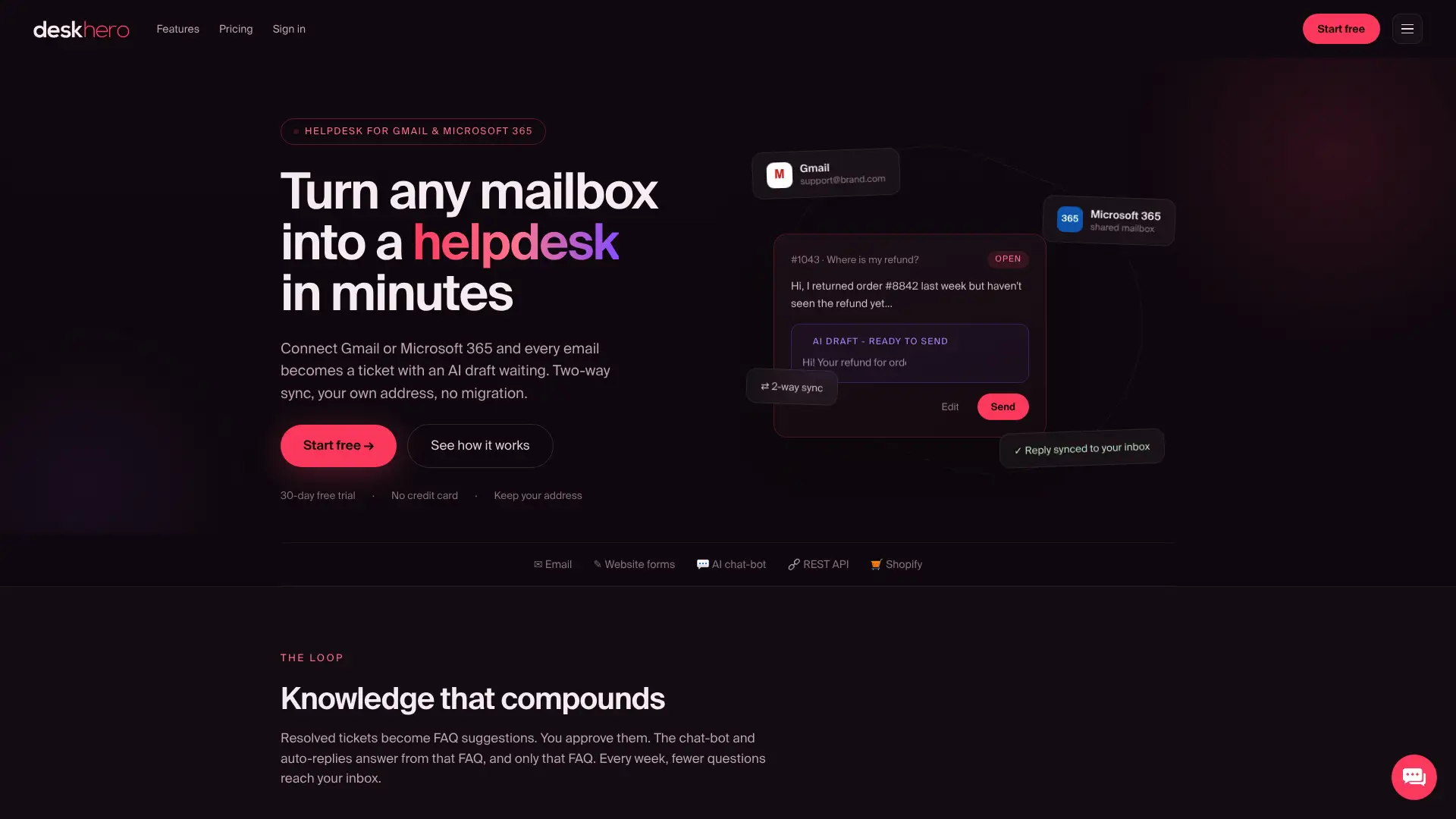
There’s no email migration and no new address to manage. Customer questions land as tickets in a shared inbox, and resolved conversations can contribute to suggested public FAQ items. After a User approves them, those FAQ items can power the website chatbot and AI auto-replies. The Internal KB and other workspace knowledge help draft replies for Users to review. Automatic actions are logged and labeled, while fully automatic customer responses require explicit opt-in. If you’re evaluating knowledge base software for a small or mid-sized support team, start the 30-day free trial at Deskhero, with no credit card required.
Sources
- Gartner survey reveals 47 percent of digital workers struggle to find the information needed to effectively perform their jobs
- Internal Knowledge Base: The Practical 2026 Guide | Docsio
- Internal Knowledge Base: What It Is + How to Build One (2026)
FAQ
What Is an Internal Knowledge Base?
It’s a centralized, searchable repository of company information, covering procedures, policies, onboarding steps, and past decisions, built so employees can find answers themselves instead of asking a coworker.
What Are Some Examples of Internal Knowledge Bases?
Common examples include an IT help center for password resets and access requests, an HR policy hub for benefits and PTO, an engineering runbook library for incident response, and a sales enablement wiki for pitch decks and objection handling.
What Is an Example of a Knowledge Management System?
A platform that combines a searchable content library with categorization, analytics, and user feedback qualifies as a knowledge management system. Deskhero extends that model by connecting an Internal KB and approved public FAQ items to a ticketed helpdesk. Its chatbot answers only from the approved public FAQ.
What’s Another Term for a Knowledge Base?
You’ll also hear it called a company wiki, an internal documentation system, an employee knowledge database, or a knowledge management platform, depending on the vendor or the team using it.