How to Translate Support Tickets: Setup Guide

Ticket translation lets support Users read a customer message in a familiar language and reply in the customer’s language without copying text into a separate tool. The exact workflow depends on the helpdesk. Some systems translate automatically, while others detect the language automatically and let a User choose when to translate.
Check three things before rollout:
- Confirm the real workflow. Find out whether language detection, ticket translation, and reply translation are automatic or User-triggered. These are separate capabilities.
- Verify supported language pairs. A platform may support one set of languages for its interface and another for translating ticket content.
- Plan for review and privacy. Keep the original message available, review sensitive replies before sending, and understand how the translation provider processes ticket data.
Key Takeaways
A reliable translation workflow keeps Users in control, preserves the original text, and gives the team a clear way to handle uncertain or sensitive translations.
| Point | Details |
|---|---|
| Separate detection from translation | Automatic language detection does not necessarily mean the ticket or reply is translated automatically. |
| Start with User-triggered translation | Let Users compare the original and translated text while the team learns where review is most valuable. |
| Keep the original visible | Names, order numbers, product terms, and legal wording should remain easy to check against the source message. |
| Measure outcomes by language | Track correction reports, reply time, and escalations separately for the language pairs you use most. |
| Deskhero uses one-click translation | Deskhero detects the incoming language automatically, while a User triggers ticket and reply translation. |
Table of Contents
- What ticket translation does for your support team
- How to prepare ticket translation: configuration checklist
- How language detection works and how to handle a wrong result
- Managing translation per ticket or conversation
- Translating User replies before sending
- Known limitations, data privacy, and quality controls
- Rollout checklist, metrics, and troubleshooting
- How Deskhero handles ticket translation
- What most ticket translation guides skip
- Deskhero makes multilingual support straightforward
- Sources
- FAQ
What ticket translation does for your support team
A helpdesk translation workflow can include three distinct steps: detecting the language of an incoming message, translating the conversation into a language the User reads, and translating the User’s draft back into the customer’s language. Treat those as separate controls when comparing products.
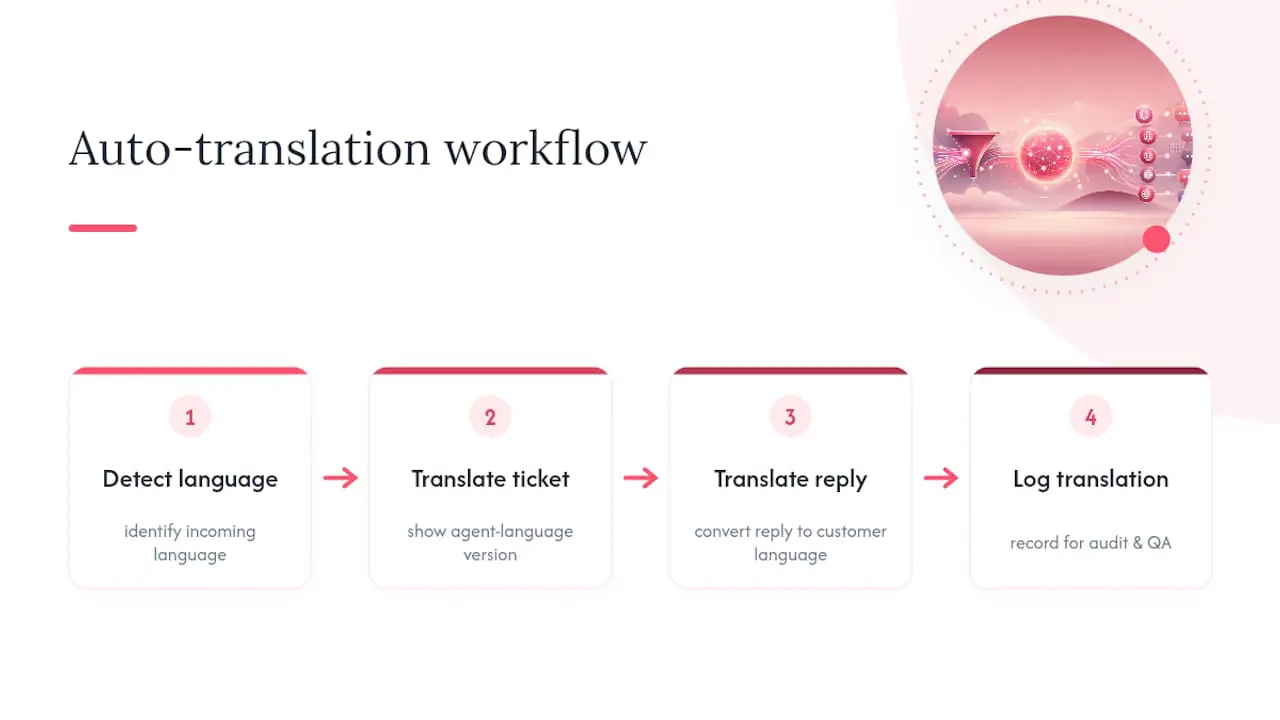
The practical benefit is simpler handling of routine multilingual tickets. Users can understand the request and prepare a response without moving the conversation into another application. Machine translation can reduce the time and cost of multilingual support, but it still involves a tradeoff between speed, scope, and quality. Phrase’s guide to multilingual customer support recommends human review and post-editing when accuracy matters.
Translation is not the same as subject matter expertise. It can carry a message between languages, but it cannot confirm that a refund decision is correct, that legal wording is safe, or that a technical diagnosis is sound. The User remains responsible for the answer.
A sound workflow therefore keeps the source message available, makes the translation direction clear, and asks for confirmation before a translated reply is sent. It should also provide a route to a bilingual reviewer for high-risk conversations.
How to prepare ticket translation: configuration checklist
Translation controls vary by product, so use this checklist to inspect the system you actually have:
- Identify the translation model. Determine whether translation is built into the helpdesk, connected through a cloud API, or performed in the browser. Browser translation APIs are still experimental and have limited browser availability, according to the MDN Translator and Language Detector API reference.
- Check source and target languages. Confirm the exact pairs your team needs. Test regional variants when tone or terminology differs between markets.
- Map each control. Record what is automatic, what a User clicks, whether the source language can be chosen manually, and whether the target language is remembered.
- Keep original content available. Users need a way to compare names, codes, links, amounts, and quoted wording with the source.
- Test outgoing translation. Confirm that a draft can be translated before sending and that the interface clearly shows which language the customer will receive.
- Review data handling. Check the vendor’s data processing terms, retention rules, subprocessors, and any controls that apply to personal or regulated information.
- Define escalation rules. Decide which topics require a bilingual reviewer, such as legal disputes, safety issues, high-value refunds, or regulated advice.
Pro Tip: Build a small test set from representative, redacted tickets. Include short messages, mixed-language text, product names, order numbers, and polite phrases. Review both translation directions before using the workflow with customers.
How language detection works and how to handle a wrong result
A language detector evaluates text and returns a language identifier. Some services also return a confidence score and script information. Microsoft’s language detection documentation explains that ambiguous text can lower confidence and mixed-language content is usually labeled according to the language with the largest representation.
Common failure modes include:
- Short messages. A greeting, product code, or two-word reply may not contain enough language-specific context.
- Mixed-language text. A customer may write in one language and paste an error message in another.
- Names and specialized terms. Brand names, abbreviations, and technical vocabulary can distort the result.
When the detected language looks wrong, do not assume that re-running the same request will improve it. If the helpdesk permits it, choose the source language manually and translate again. Otherwise, ask the customer for a fuller description or route the ticket to someone who can identify the language.
Codes also deserve attention. A service may return a language code, a language plus region, or a separate script code. Integrations should map these values deliberately instead of assuming that every vendor uses the same format.
Pro Tip: Test very short and mixed-language messages separately from normal tickets. If they fail often, send them to a review path instead of inventing a universal confidence or character threshold.
Managing translation per ticket or conversation
Per-ticket controls are safer than a single global switch because the right action depends on the conversation. At minimum, look for these capabilities:
- Translate the conversation on demand. A User should be able to translate a specific ticket without changing every ticket in the workspace.
- Choose the target language. The language used by the User should be explicit and easy to change.
- Return to the original. The untranslated conversation should remain accessible for comparison.
- Translate the pending reply. The User should be able to translate a draft before sending it to the customer.
- Confirm the send language. A clear confirmation reduces the chance of sending the wrong language version.
Translation should be handled more cautiously for contracts, complaints involving exact wording, security incidents, medical or financial information, and any situation where a small wording change could alter the meaning. In those cases, preserve the original and involve a qualified reviewer.
Do not assume that every helpdesk offers a per-conversation automatic translation toggle, editable confidence threshold, translation log, or separate setting for every channel. Verify those controls in the product before documenting them for your team.
| Control | Purpose | When to use it |
|---|---|---|
| Translate ticket | Read the conversation in a chosen language | When the original is not familiar to the assigned User |
| Choose source language | Override an uncertain automatic detection | Short, ambiguous, or mixed-language messages |
| View original | Compare exact names, values, and wording | Quality checks and sensitive cases |
| Translate draft | Prepare the outbound reply in the customer’s language | Before sending a reply written in another language |
Translating User replies before sending
A review-first workflow is the safer default. The User writes the answer in a familiar language, translates the draft, checks names and key terms, confirms the destination language, and sends. The helpdesk should make the translation direction visible throughout this process.

Pay close attention to details that machine translation handles poorly: product names, placeholders, units, legal phrases, honorifics, and formal versus informal tone. Keep links, order numbers, and code fragments unchanged unless there is a specific reason to localize them.
A short terminology guide can help a team stay consistent. List product names that must not be translated, approved translations for recurring feature names, and phrases that require a human reviewer. For public knowledge content, Phrase recommends using machine translation as a starting point and having people review and post-edit the result.
Pro Tip: Focus the terminology guide on terms that have already caused confusion. Review it when products or policies change, and give Users a simple way to report a poor translation from the ticket workflow.
Known limitations, data privacy, and quality controls
Accuracy limits. Short messages, idioms, humor, mixed-language content, and specialized terminology remain difficult. Images and scanned documents may also require text extraction before their contents can be translated.
Availability and quota limits. Cloud services can impose request, rate, or usage limits. Browser-hosted translation depends on browser support, permissions, model availability, and local downloads. MDN marks the browser Translator and Language Detector APIs as experimental and not available in every widely used browser.
Data privacy. If a helpdesk sends ticket text to a translation provider, personal information may be processed by another service. Review the actual provider agreement and deployment model. Do not assume that every translation service stores data, trains on it, or follows the same retention rules.
| Risk area | What to check | Practical response |
|---|---|---|
| Personal information | Provider terms, subprocessors, and data location | Redact where practical and choose an approved service |
| Meaning changes | Names, dates, amounts, obligations, and negation | Compare with the original and escalate sensitive replies |
| Service limits | Current rate and usage limits for the chosen provider | Monitor errors and document a fallback path |
| Weak language pairs | Corrections and escalations by source and target language | Require review where quality is inconsistent |
Pro Tip: Sample translated tickets at a regular interval and include both routine and sensitive cases. Record what had to be corrected and use those patterns to improve terminology guidance and escalation rules.
Rollout checklist, metrics, and troubleshooting
A phased rollout makes it easier to find language-specific problems before translation becomes a default habit. Use this sequence:
- Select representative Users. Include people who handle the most common multilingual topics and at least one person who can review the relevant languages.
- Start with your highest-volume language pairs. Test both incoming ticket translation and outgoing reply translation.
- Document the controls. Show Users how to translate a ticket, choose a source or target language, return to the original, and translate a draft.
- Define sensitive-ticket handling. Mark the topics that require a bilingual or specialist review.
- Create a fallback. Decide what Users should do if translation is unavailable or obviously wrong.
- Expand after reviewing results. Add languages only after the workflow is clear and the initial corrections have been addressed.
Metrics to monitor: translated ticket volume, time to first reply, correction reports, escalations, and customer follow-ups that indicate a misunderstanding. Break results down by language pair because one overall average can hide a weak pair.
Common troubleshooting:
- Wrong detected language: Choose the source language manually if the product supports it, or ask for more context.
- Unclear translation direction: Confirm the selected source and target before translating again.
- Missing translation: Check whether the language pair is supported and whether the provider or browser reports an availability error.
- Damaged names or codes: Restore the exact values from the original and add them to the team terminology guide.
How Deskhero handles ticket translation
Deskhero’s multilingual support automatically detects the language of an incoming ticket. Users can translate the ticket into a chosen language, read the conversation in that language, and translate a reply back into the customer’s language before sending.
The distinction matters: language detection is automatic, while ticket and draft translation are User-triggered. The translation control can auto-detect the source or use a source language selected by the User. Deskhero remembers the chosen target, translates the open draft and a pending AI suggested reply along with the ticket, and shows a confirmation when the reply language differs from the customer’s language.
A practical Deskhero workflow is:
- Connect a Gmail, Google Workspace, Microsoft 365, or DNS-based mailbox to the shared inbox.
- Open the ticket and use Translate. Keep auto-detect or select the source language, then choose the target language.
- Review the translated conversation while keeping the original available.
- Write the reply in your language, translate it to the customer’s language, and confirm before sending.
- Use the detected ticket language in automation rules when language-based routing is useful.
Deskhero’s AI suggested replies are grounded in workspace knowledge, which can include answered tickets, internal knowledge, approved public FAQ entries, scraped website pages, imported Q&A, and connected product data. The chat-bot and AI auto-replies follow a narrower rule: they answer only from the approved public FAQ. Translation itself does not change those knowledge rules.
Pro Tip: Test the whole flow with a real mailbox and a non-production conversation. Translate the incoming ticket, translate the draft back, and verify the final language confirmation before training the rest of the team.
What most ticket translation guides skip
The difficult part is not making translation appear. It is noticing when a translation looks fluent but changes the customer’s meaning. Those errors are easy to miss when the assigned User cannot read the original language.
Teams should treat translation quality as an operational responsibility. Sample conversations, record recurring corrections, and separate routine questions from sensitive cases. Give Users a clear escalation path instead of asking them to judge a language they do not know.
Machine translation is useful for routine support, but it does not replace native-language or specialist judgment. Use it to remove friction from common conversations, then bring in a qualified person when wording, policy, safety, or legal meaning is important.
Deskhero makes multilingual support straightforward
Deskhero includes multilingual conversations in its paid plans, so teams do not need to connect and manage a separate translation API. Connect an existing mailbox, let Deskhero detect the incoming language, and use the ticket translation control when a User needs it. The interface itself is available in 14 languages.
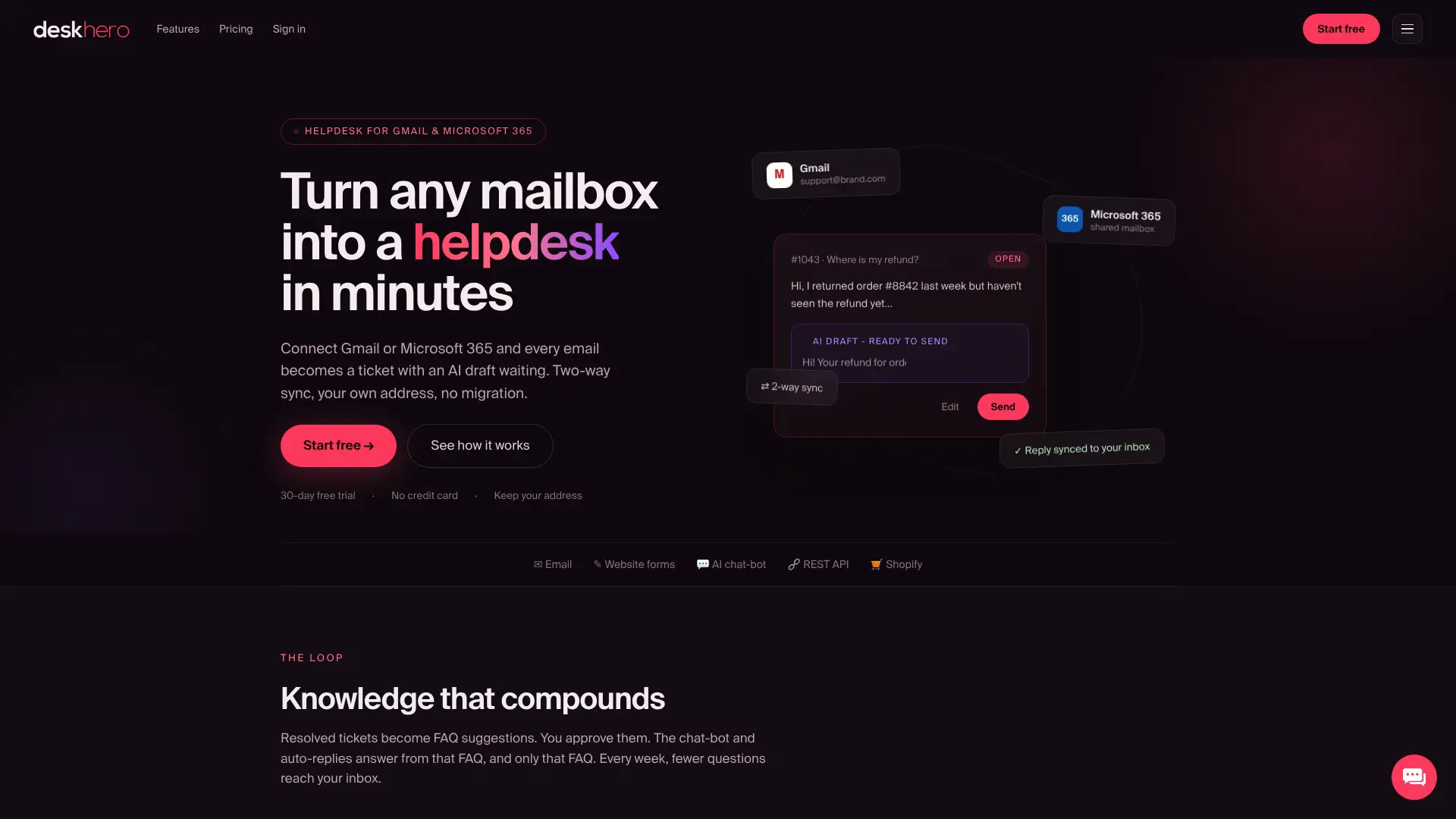
Users can translate the conversation and the reply draft inside the ticket, with a confirmation before sending in another language. Start a 30-day free trial with no credit card needed and test the workflow with your own mailbox.
Sources
- How to use language detection | Microsoft Learn
- Translator and Language Detector APIs | MDN
- The Ins and Outs of Multilingual Customer Support | Phrase
FAQ
How do I turn on translation for support tickets?
First check whether your helpdesk translates automatically or provides an on-demand control. In Deskhero, the incoming language is detected automatically. A User opens the ticket, selects Translate, keeps auto-detect or chooses the source language, and then chooses the target language.
What is the best ticket translator for a helpdesk?
The best choice supports your required language pairs, keeps the original visible, translates replies before sending, and meets your data handling requirements. Built-in helpdesk translation is simpler to operate. Cloud APIs offer integration flexibility, while browser APIs currently have more compatibility and availability constraints.
How much do ticket translation tools cost?
Pricing depends on the product. Cloud services may charge by characters or usage, while some helpdesks include translation in their subscription. Deskhero includes multilingual conversations in its paid plans, so customers do not manage a separate translation API subscription for the built-in workflow.
Can Users correct a wrong language detection?
That depends on the helpdesk. Deskhero’s translation control lets a User keep automatic source detection or select the source language manually before translating the ticket.
What happens when a translation service limit is reached?
Behavior depends on the provider. A cloud API may return an error or delay requests, while a browser model may be unavailable because of compatibility, permissions, or model download status. Monitor the actual error and document a manual fallback instead of assuming that failures are silent.