How Helpdesks Read Customer Attachments Automatically

A helpdesk can use customer attachments as context for support replies, but "reading an attachment" can mean several different things. Some tools extract text into ticket fields and trigger routing rules. Others use the attachment to prepare a reply for a User to review.
That distinction matters. A screenshot, native PDF, scanned receipt, and Word document do not all take the same path, and an attachment-aware reply draft is not the same as a full document-processing workflow.
What can improve for your team:
- Users can review a suggested reply that already considers a customer's screenshot or document
- Routine details in an attachment can be addressed without repeatedly switching between files and the reply editor
- Human review remains in the loop before a reply is sent
Deskhero uses supported customer attachments as context when it creates an AI suggested reply. The User can accept, edit, or dismiss that draft. This is useful, but it should not be confused with automatically extracting values into custom fields or routing tickets based on document contents.
Key Takeaways
Attachment-aware support works best when you define the outcome you need, test real files, and keep a User responsible for the final response.
| Point | Details |
|---|---|
| Define what "read" means | Reply drafting, text extraction, field mapping, and automated routing are separate capabilities. |
| Match the method to the file | Documents with embedded text are easier to parse than scans, photos, or handwriting. |
| Keep review in the workflow | A suggested reply should be checked against the original attachment before it is sent. |
| Measure a real support outcome | Track handling time, follow-up questions, and correction rates on attachment-heavy tickets. |
| Know Deskhero's scope | Deskhero uses supported images and documents as context for AI suggested replies. |
Table of Contents
- How Does a Helpdesk Read Customer Attachments?
- What Benefits Should You Expect, and What Should You Measure?
- How Do You Implement Attachment Reading Without a Dev Team?
- Which File Types Work Best, and Where Does Extraction Fail?
- How Do You Keep Extraction Accurate and Auditable?
- How Deskhero Puts This Into Practice
- The First 90 Days, Realistically
- Start a Pilot That Reads Attachments for You
- Sources
- FAQ
How Does a Helpdesk Read Customer Attachments?
There are two common workflows. In an attachment-aware drafting workflow, the helpdesk gives a supported image or document to the AI along with the conversation and relevant company knowledge. The result is a suggested reply for a User to review.
In a document-processing workflow, a separate OCR or parsing tool extracts text or structured values. Those values may then be written to ticket fields or used by automation rules. Products built for this purpose may support field mapping and workflow actions, as described on the Swifteq document parser page.
For document processing, the steps usually look like this:
- Detect the file type and decide whether it contains text or pixels.
- Extract embedded text directly, or use OCR or vision for an image.
- Structure the output if the workflow needs fields such as an order number or invoice total.
- Use the result in a draft, a ticket field, or a rule, depending on the product and configuration.
A basic OCR pass may recover the words while losing the relationship between rows and columns. Layout-aware tools try to preserve that structure. AI vision can also interpret visual context in a screenshot or product photo, as illustrated by Macha's Zendesk image workflow.
Pro Tip: Write down the exact output you need before choosing a tool. "Help the User answer this ticket" is a different requirement from "copy the invoice total into a custom field."
What Benefits Should You Expect, and What Should You Measure?
The clearest potential benefit is less manual context switching. A User may no longer need to download a file, inspect it in another application, return to the ticket, and start a reply from scratch.
The actual gain depends on your attachment mix and the outcome you automate. A clean PDF with selectable text is easier to use than a dark, angled photo. A suggested reply can save drafting time, while structured OCR can save transcription time. Do not treat vendor percentages as a forecast for your own queue.

Measure the workflow you actually deploy. Useful baseline metrics include:
- Average handling time for tickets with attachments
- Percentage of those tickets that require a follow-up question
- Percentage of suggested replies that Users substantially edit or dismiss
- Number of attachment-related corrections made after review
Collect a baseline before rollout, then compare the same ticket category and a similar volume after the team has learned the new process.
How Do You Implement Attachment Reading Without a Dev Team?
If your goal is attachment-aware reply drafting, start with a helpdesk that provides the capability directly. If your goal is structured extraction, look for a supported parser integration and confirm that it can map the fields you need.
- Audit your attachments. Sample recent tickets and count the formats, sizes, image quality, and common customer questions.
- Choose one outcome. Start with reply suggestions or one structured value, not every possible action at once.
- Confirm supported formats and limits. A file that can be uploaded is not necessarily a file the AI can read.
- Keep a User review step. Compare the proposed response or extracted value with the source attachment.
- Create a fallback. Make it easy to handle an unsupported, oversized, unclear, or handwritten file manually.
- Pilot one ticket category. Measure quality and handling time before expanding.
Pro Tip: Use examples from your own queue. A polished sample invoice proves less than a blurry customer photo that represents your daily workload.
Purpose-built parser apps can add structured OCR to an existing ticket platform. Attachment-aware helpdesks can instead reduce drafting work without requiring you to design field mappings or routing rules.
Which File Types Work Best, and Where Does Extraction Fail?
Documents with a usable text layer generally provide cleaner input than scans. Native PDFs and Word documents can often supply text directly. Photos, screenshots, and image-only PDFs require the system to interpret pixels.
Common failure points include:
- Low-resolution or heavily compressed images
- Documents photographed at an angle
- Handwriting or unusual fonts
- Faded receipts and low-contrast labels
- Files that exceed the product's size, page, or content limits
Upload support and AI-reading support are also different. Deskhero allows attachments up to 120 MB on a ticket, but its AI attachment context has narrower limits. The suggested reply can consider up to three supported images and two supported documents. Images are PNG, JPG, GIF, or WebP and must be at least 300 by 300 pixels. Source images are limited to 15 MB. Documents are PDF, DOC, or DOCX, with up to 8,000 characters extracted per document and up to 10 PDF pages processed inline.
How Do You Keep Extraction Accurate and Auditable?
Start by keeping the original attachment beside the result. For a suggested reply, the User should verify names, numbers, dates, product details, and the requested action before sending.
Sample attachment-aware tickets regularly and record where the workflow fails. Useful categories include unsupported file, unreadable image, missing context, incorrect interpretation, and correct interpretation with an unsuitable reply.
Track:
- Suggested replies accepted, edited, and dismissed
- Corrections involving numbers or identifiers
- Handling time for supported and unsupported files
- Customer follow-up rate after attachment-aware replies
Treat the attachment as evidence for a draft, not as permission to act without review. For higher-risk requests such as refunds, account changes, or security issues, retain the controls you would use if a User had read the file manually.
How Deskhero Puts This Into Practice
Deskhero generates AI suggested replies for incoming tickets. For supported attachments, the draft can use screenshots as image context and PDF or Word documents as text context. The draft also uses relevant workspace knowledge, which can include answered tickets, approved public FAQ entries, internal knowledge base content, scraped website pages, and other configured sources.
The suggestion appears in the reply editor. A User can accept it, edit it, or dismiss it. Sending an unmodified AI suggestion requires an additional confirmation. Deskhero does not claim that this feature writes attachment contents into custom fields, assigns a confidence score, or routes the ticket based on extracted values.
Deskhero connects with Google and Microsoft mailboxes using two-way sync, so incoming messages become tickets and replies can be sent from the company's address. The Topics cluster in Statistics is a separate analysis feature for understanding themes across tickets. It is not an attachment-processing log.
A practical pilot:
- Choose one mailbox or ticket category with frequent supported attachments
- Ask Users to compare every suggestion with the source file
- Record which formats produce useful drafts and which need manual handling
- Expand only after the quality is consistent enough for your team
Pro Tip: Begin with a common, low-risk request type. That gives you enough examples to judge quality without putting a sensitive workflow first.
The First 90 Days, Realistically
In the first two weeks, inventory attachment formats and establish baseline metrics. Over the next several weeks, test one category and document failure patterns. Use the remaining time to train Users on review, refine the fallback process, and decide whether attachment-aware drafting is enough or a separate structured OCR tool is also needed.
A common mistake is assuming that every file attached to a ticket will be read completely. Product limits, image quality, document length, and file type all affect the available context. Make those boundaries part of the team's workflow.
Start a Pilot That Reads Attachments for You
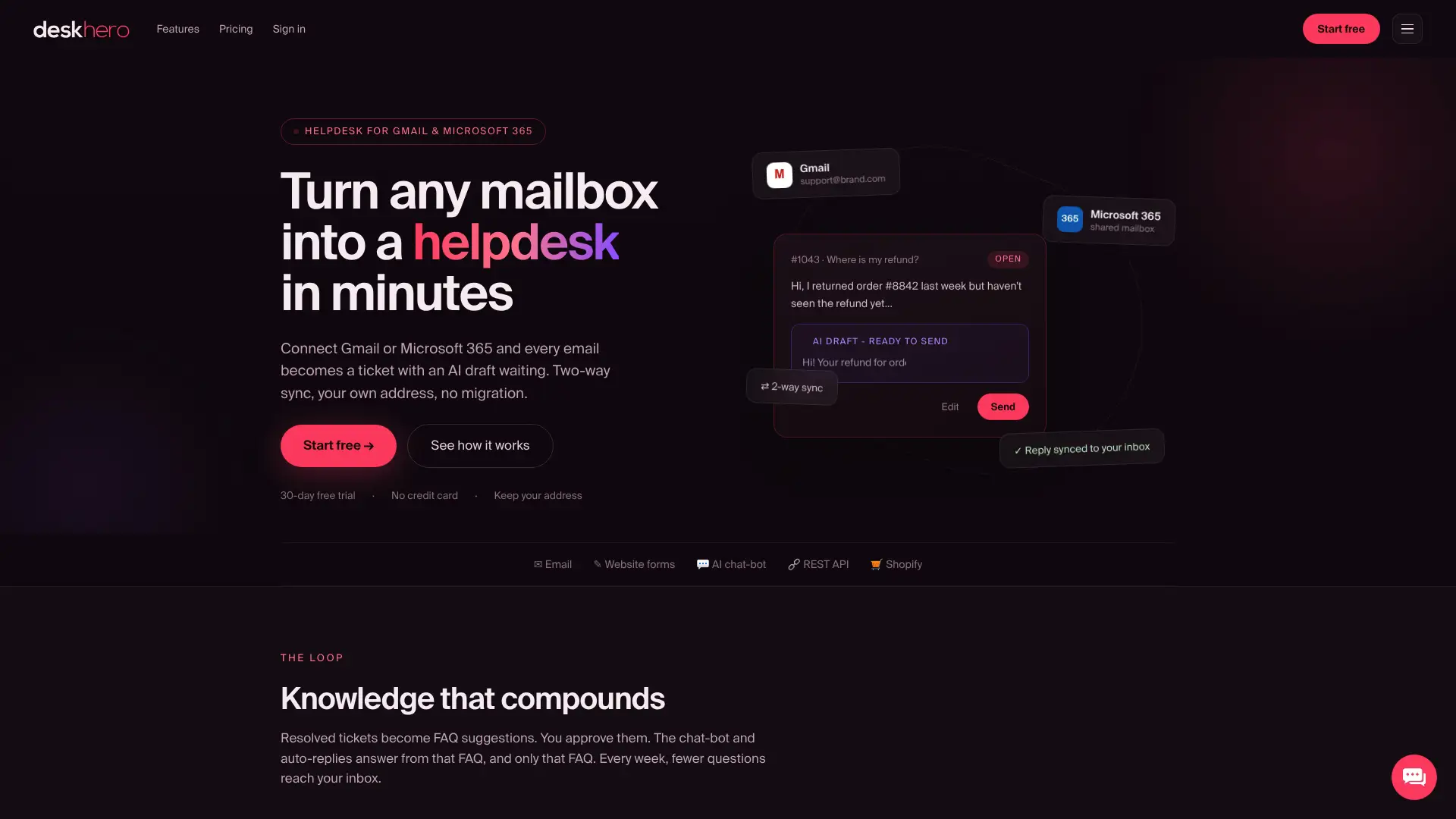
Deskhero can use supported customer images and documents when preparing an AI suggested reply. It keeps the User in control of what is sent and works with the broader knowledge available in the workspace.
For e-commerce teams, the Shopify integration adds a customer and order panel to the ticket. That panel is separate from attachment reading. The AI suggested replies page explains how Deskhero prepares a response for review.
Deskhero offers a 30-day free trial with no credit card required. Start the free trial, test a representative set of tickets, and judge the drafts against the attachments your customers actually send.
Sources
- Help Desk OCR Triage: Faster Tickets from Day One, api4ai
- AI Vision for Zendesk Ticket Images, Macha
- Zendesk Document Parser OCR by Swifteq
FAQ
Can a helpdesk actually read a screenshot a customer sends?
Yes, some helpdesks and integrations can use AI vision to interpret supported screenshots. The exact result may be a reply suggestion, extracted text, or structured fields, depending on the product.
What's the difference between OCR and AI vision for attachments?
OCR converts visible characters into text. AI vision can also interpret visual context, such as what appears in a product photo or interface screenshot.
Does Deskhero read PDF and DOCX attachments?
Deskhero can use supported PDF, DOC, and DOCX attachments as text context for AI suggested replies. Limits apply to the number, size, length, and page count of documents processed.
How accurate is automated attachment extraction?
Accuracy varies with the tool, file type, layout, and image quality. Test your own files and keep a User review step instead of relying on a universal accuracy claim.
What file types cause the most extraction problems?
Low-resolution photos, angled images, handwriting, low-contrast scans, unsupported formats, and files beyond a product's processing limits commonly need manual review.
Should every automated extraction trigger an instant reply?
No. Start with a draft that a User reviews. Add customer-facing automation only when the product supports it, the knowledge source is appropriate, and the risk is understood.