Use Your Existing Email as a Helpdesk: SMB Guide

Yes, you can turn a Gmail, Google Workspace, or Microsoft 365 mailbox into a functioning email ticketing system without moving your existing message history or creating a new public address. Deskhero connects to Google and Microsoft mailboxes through OAuth, converts incoming mail into tracked tickets, and sends replies from your company address through two-way email sync.
The practical case for staying put is strong. Your team already knows the address, customers already use it, and a no-migration setup avoids the disruption of changing contact details. Deskhero adds new-ticket automations, SLA policies, assignment, and reporting around the mailbox you already use.
First action: Confirm you have administrative access to the mailbox. For Google or Microsoft, connect it through OAuth. For another domain you own, configure Deskhero's DNS records and forward inbound mail to the unique Deskhero address. Then run a complete send-and-reply test.
Pro Tip: Create a test alias such as support-test@yourdomain.com and run your first setup there. It gives you a safe place to check routing and replies before changing the live support address.
Key Takeaways
An existing Gmail or Microsoft 365 mailbox can become a helpdesk without a history migration. The important work is choosing the right connection method, testing inbound and outbound mail, and defining a simple ownership process.
| Point | Details |
|---|---|
| No history migration needed | Connect the address and let new conversations become tickets while old mail remains where it is. |
| Connection method matters | Deskhero uses OAuth for Google and Microsoft. Other owned domains use DNS records plus forwarding. |
| Ownership prevents duplicate work | Assign each ticket to a User and use private notes when handing it over. |
| AI needs guardrails | Review suggested replies before sending. Customer-facing AI answers only from the approved public FAQ. |
| Deskhero fits this path | Deskhero provides two-way Google and Microsoft sync, SLA policies, automations, and a 30-day free trial. |
Table of Contents
- How to set up your existing email as a helpdesk
- Core features to enable so your email helpdesk works at scale
- How to keep replies coming from your company address
- Triage workflows and practical reply templates
- Timeline, cost factors, and practical value
- Security and access controls for shared mailboxes
- How to apply AI safely for drafting replies
- KPIs to track and a sample SLA framework
- Common problems and how to fix them
- What actually works in small support teams
- Deskhero makes the no-migration path the fastest path
- Sources
- FAQ
How to set up your existing email as a helpdesk
Follow these steps in order. Each one builds on the last.
- Verify mailbox and administrative access. Confirm the support mailbox is active and that an administrator can approve the connection.
- Choose the connection method. Deskhero connects Google and Microsoft mailboxes through OAuth. For another address on a domain you own, add the required DNS records and forward incoming mail to Deskhero.
- Keep access individual. Invite each support colleague as a User instead of sharing a mailbox password.
- Connect the mailbox to the right group. Each Deskhero mailbox routes tickets to one group. The email-to-ticket guide explains the general workflow.
- Confirm the sending address. Check that replies leave from the company address customers already recognize.
- Run a full send-and-reply cycle. Send from an external address, confirm that Deskhero creates a ticket, reply from Deskhero, and make sure the customer receives the response in the original thread.
Testing checklist before launch:
- Send test messages from both internal and external addresses
- Attach a PDF and an image, then confirm both appear on the ticket
- Reply from the helpdesk and verify the sender address
- Send another customer reply and confirm it joins the existing conversation
Pro Tip: Google Workspace and Microsoft 365 administrators may need to approve the OAuth connection. If authorization fails, review the tenant's app-access policy before changing mailbox settings.
Core features to enable so your email helpdesk works at scale
Getting mail into tickets is step one. A small set of working rules keeps the inbox usable as volume grows.
- Reliable threading. Test real replies, forwards, and copied recipients so you understand how the platform groups a conversation.
- Clear assignment. Give each active ticket one assignee so everyone knows who owns the next response.
- SLA policies. Define first-reply and resolution targets that match your staffing hours and ticket priorities.
- New-ticket automations. Use sender, subject, message, language, or an AI-evaluated condition to set group, assignee, status, priority, tags, or supported custom fields when a ticket arrives.
- A reply playbook. Document the facts and tone Users should cover in common replies. The support email templates article offers examples to adapt.
- Private notes. Leave internal context on the ticket when another User needs to take over.
- Useful reporting. Review ticket volume, response times, SLA results, channels, and team activity in Statistics.
How to keep replies coming from your company address
The correct setup depends on the mailbox type. Google and Microsoft connections use OAuth and provide two-way sync. An address on another owned domain uses forwarding for inbound mail and three CNAME records so Deskhero can send authenticated replies from that address.
Connection checklist:
- Google: Connect the Gmail or Google Workspace mailbox through the Deskhero OAuth flow.
- Microsoft: Connect Microsoft 365 or Outlook through OAuth. Microsoft shared mailboxes are supported with the required shared-mailbox permissions.
- Other owned domains: Add the three CNAME records shown by Deskhero, then forward inbound messages to the unique Deskhero forwarding address.
- Verification: Use the mailbox verification test and complete an external send-and-reply cycle before launch.
Do not assume that an IMAP login provides ongoing sync in Deskhero. IMAP is available for one-time imports, not as a live mailbox connection.
Pro Tip: Keep a copy of the exact DNS values and forwarding destination used during setup. If mail flow later changes, you can compare the live configuration with the known working values.
Triage workflows and practical reply templates
A consistent triage flow keeps tickets from piling up unread. Here is a practical sequence:
New ticket → apply new-ticket automation → assign a User → send the first response → add a private note if handing over → resolve and close
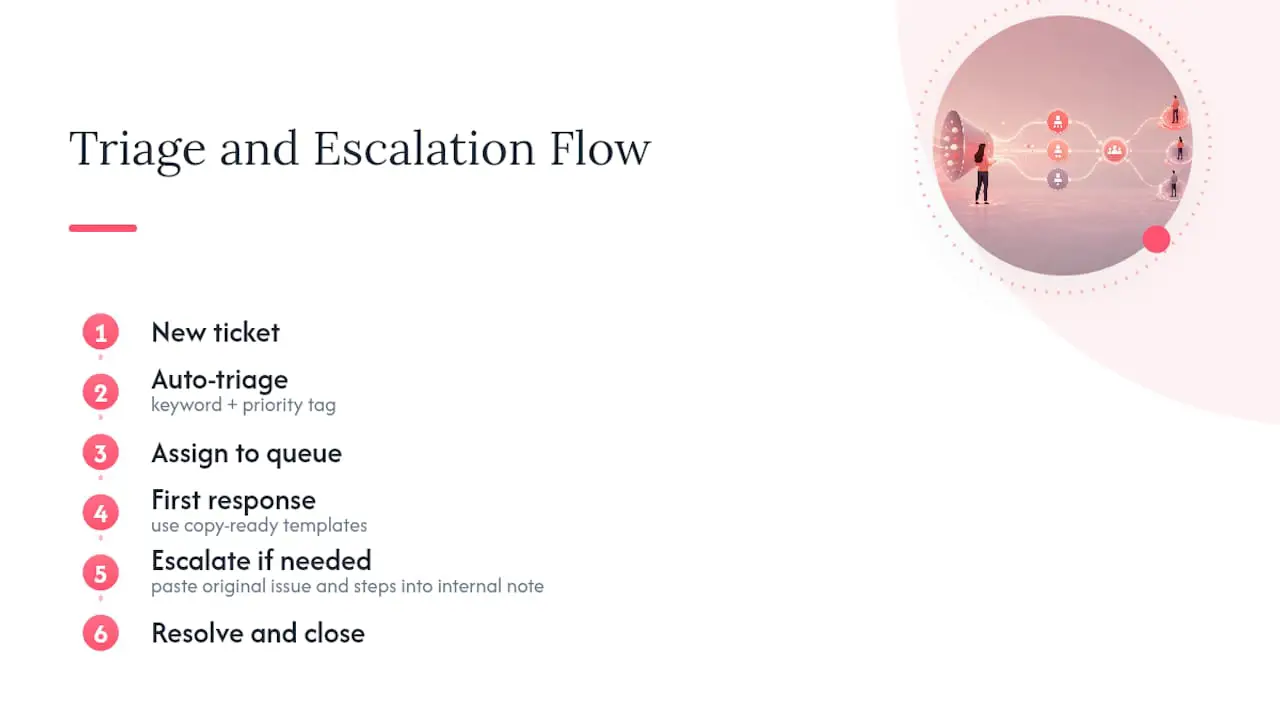
Copy-ready starting points:
- First response: "Thanks for contacting us. We have your request and will update you by [time or date]."
- Request more information: "To investigate, please send [specific detail]. Avoid including passwords or full payment details."
- Handover: "I am bringing in the right colleague. They can see the context you already shared, so you do not need to repeat it."
- Resolution check: "We have completed [action]. Please reply if the issue is still happening."
Adapt every reply to the actual ticket. When handing work over, add a private note with the customer's issue, what has been checked, and the next recommended step.
Timeline, cost factors, and practical value
| Phase | Exit check | Key activities |
|---|---|---|
| Mailbox connection | Inbound and outbound tests pass | OAuth or DNS setup, forwarding, sender verification |
| Workflow setup | Ownership and routing are clear | Groups, Users, new-ticket automations, priorities |
| Service targets | SLA policy matches staffed hours | First-reply targets, resolution targets, business-hour schedule |
Cost factors to budget:
- Subscription cost for active Users and the chosen plan
- Administrative time for OAuth approval, DNS changes, forwarding, and testing
- Training time for assignment, private notes, escalation, and SLA handling
Value to measure: Compare first-reply time, resolution time, reopened tickets, and replies needed per resolution before and after launch. Use your own baseline instead of relying on a generic savings estimate.
For teams that do need to move historical records, Help Desk Migration offers a no-code migration service. A migration is a separate project from connecting an existing address for new tickets.
Security and access controls for shared mailboxes
- Individual accounts: Give each User their own login. Do not share the mailbox password.
- MFA for privileged accounts: Protect mailbox and helpdesk administrators with multi-factor authentication.
- Least-privilege access: Grant only the mailbox, group, and role access each person needs.
- Private notes: Keep internal coordination inside the ticket instead of forwarding customer data through informal channels.
- Verified sending: Use the supported OAuth or DNS flow so replies come from an authorized address.
- Attachment handling: Limit access to tickets containing sensitive documents and follow your organization's data-handling policy.
- Retention: Set retention rules according to your contracts, industry requirements, and legal advice.
Pro Tip: Review access whenever someone changes roles or leaves the team. Deactivate the Deskhero User, remove mailbox permissions, and rotate any credentials that were shared outside the supported connection flow.
How to apply AI safely for drafting replies
Deskhero separates User-facing draft suggestions from customer-facing automatic answers. That distinction matters because the two features use different knowledge scopes.
- Suggested replies: Deskhero can draft a response from workspace knowledge, including answered tickets, internal knowledge, approved public FAQ items, scraped website pages, imported Q&A, and connected Shopify products.
- User review: A User accepts, edits, or dismisses a suggestion. Sending an unmodified suggestion requires an additional confirmation.
- Customer-facing AI: AI auto-replies and the chat-bot answer only from the approved public FAQ.
- Explicit opt-in: Automatic replies are configured per group, and the chat-bot is enabled per widget. Both require at least 100 approved public FAQ items.
- Visible history: Automatic replies are labeled and recorded on the ticket timeline.
Start with User-reviewed suggestions. Build and review the public FAQ before enabling customer-facing AI, then monitor tickets that return to a person because the FAQ did not contain a confident answer.
KPIs to track and a sample SLA framework
Useful metrics for an email-based helpdesk:
- First-reply time
- Resolution time
- Replies needed to resolve a ticket
- Reopened ticket rate
- Created versus resolved ticket volume
- Share of first replies completed within SLA
The following targets are examples only. Set your own values based on operating hours, staffing, and customer commitments.
| SLA Tier | First Response Target | Resolution Target |
|---|---|---|
| Urgent | 1 hour | 4 hours |
| Standard | 4 hours | 24 hours |
| Low priority | 8 hours | 72 hours |
Review the targets frequently during rollout. Deskhero SLA policies can use calendar time or a weekly business-hours schedule, and the resolution clock can pause in a chosen status while you wait for the customer. Deskhero Statistics separates current SLA risk from completed SLA attainment, which helps teams avoid mixing live deadlines with historical results.
Common problems and how to fix them
- OAuth connection fails: Ask the Google Workspace or Microsoft 365 administrator to review app-access and consent policies.
- DNS mailbox cannot send: Compare all three CNAME records with the values Deskhero supplied and wait for DNS propagation before verifying again.
- Two Users prepare replies: Assign the ticket before working it and check the conversation for recent replies or private notes.
- Connection needs attention: Follow the mailbox status shown in Deskhero. Reauthorize an OAuth mailbox when it reports that authentication is required.
- Attachments are missing: Test with supported file types and check the original message. If the problem persists, capture the ticket ID and file details for troubleshooting.
Pre-launch debug checklist:
- Mailbox status is active
- External test message creates one ticket
- Reply reaches the customer from the expected company address
- Attachment appears on the ticket
- New-ticket automation applies the expected group and priority
- SLA policy applies the expected deadlines
What actually works in small support teams
The teams that get the most out of an email-based helpdesk start with a small, visible workflow. Connect the mailbox, assign ownership, define an escalation path, and test the full customer conversation before adding more automation.
set up a practical help desk workflow

Speed and control can pull in different directions. A fast automatic answer is useful only when the underlying knowledge is approved and current. User-reviewed suggestions are a safer starting point, while public FAQ review creates the foundation for customer-facing AI later.
Publish support hours and realistic response targets where customers can find them. If you do not staff support continuously, make that clear in the first acknowledgment and measure performance only against the hours you actually cover.
First 30 days: User training priorities:
- Assignment and private notes for handovers
- Reply standards and when to personalize them
- Escalation path and ownership changes
- SLA targets and how business hours affect them
- Statistics for response time, SLA, channels, and team activity
Deskhero makes the no-migration path the fastest path
Most small support teams do not need a new email address or a historical data migration project. They need new messages at their existing address to become organized, assignable tickets.
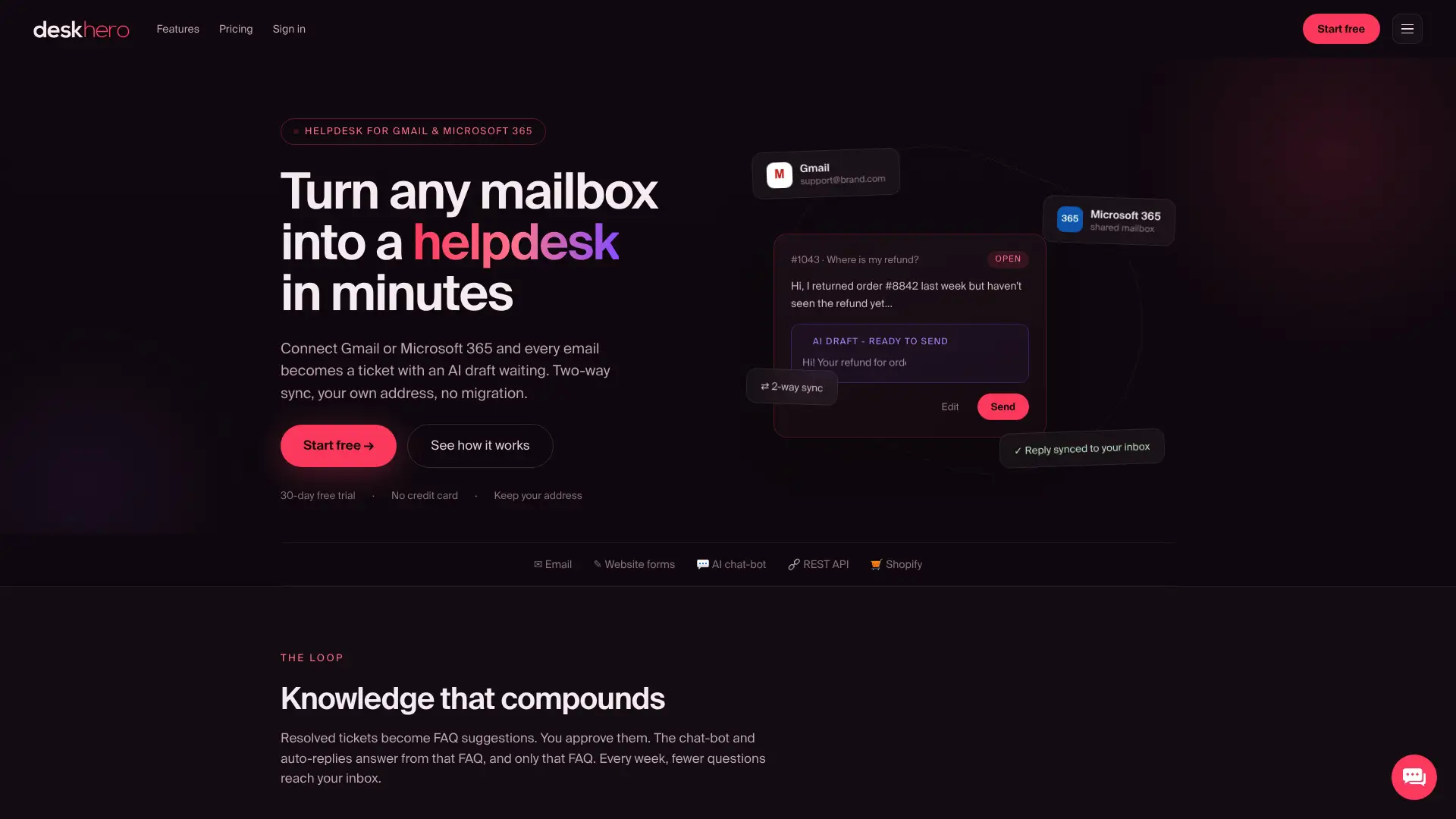
Deskhero connects Gmail, Google Workspace, and Microsoft 365 through two-way OAuth sync. Addresses on other owned domains can use DNS records plus forwarding. Deskhero includes new-ticket automations, private notes, SLA policies, Statistics, Google and Microsoft SSO, a Shopify customer panel, and REST API access. Suggested replies draw from workspace knowledge for a User to review, while customer-facing AI answers only from the approved public FAQ. Start a 30-day free trial, with no credit card required.
Sources
- Automated Help Desk Migration. No-Code, Quick Setup, Free Demo
- Email to Ticket: The Complete Guide for Support Teams | Deskhero
FAQ
Can you use an existing email address as a helpdesk without migrating?
Yes. Deskhero connects Gmail, Google Workspace, and Microsoft 365 through OAuth and turns new inbound messages into tickets without moving the mailbox's existing history. Other addresses on owned domains can use DNS records plus forwarding.
What DNS records do you need to set up a Deskhero mailbox on another owned domain?
Deskhero provides three CNAME records for authenticated sending. After adding them, forward inbound mail to the unique Deskhero forwarding address and run the mailbox verification test.
How do you reduce the risk of two Users replying to the same ticket?
Assign each active ticket to one User before work begins. Check the conversation and private notes for recent activity, and add a clear note whenever ownership changes.
How should AI be used safely in an email helpdesk?
Start with User-reviewed draft suggestions. Approve and maintain the public FAQ before enabling AI auto-replies or the chat-bot, because those customer-facing features answer only from approved public FAQ content.
How long does it take to set up an email-based helpdesk?
The time depends on administrator approval, DNS propagation, workflow complexity, and testing. Do not go live until inbound mail, outbound replies, threading, attachments, assignment, automation, and SLA behavior have passed an external test.