How to Turn Outlook Into a Helpdesk That Actually Works
You can manage a small support queue in Outlook with a shared mailbox, rules, categories, and response templates. When the team needs formal ownership, service-level tracking, automation, or reporting, connect the existing Microsoft 365 mailbox to a helpdesk instead of changing the public support address.
A disciplined DIY setup starts with a shared mailbox. It can work while the queue is simple, but Outlook does not turn messages into structured tickets or provide helpdesk reporting and SLA policies.
Key Takeaways
Turning Outlook into a reliable helpdesk requires either a disciplined DIY shared-mailbox workflow for low-volume teams or an integrated helpdesk for any team that needs ticket ownership, SLA enforcement, and reporting.
| Point | Details |
|---|---|
| DIY has a hard ceiling | A shared mailbox with rules can work for a simple queue, but ownership and status depend on team conventions. |
| Integration method matters | Prefer a helpdesk with a direct Microsoft 365 connection and verify the outbound From address before launch. |
| Move when signals appear | Consider a helpdesk when manual ownership, handoffs, service targets, or reporting become unreliable. |
| Pilot with real traffic | Run a timeboxed pilot on a controlled slice of real requests, with one owner and predefined measures. |
| Deskhero fits this use case | Deskhero connects to Microsoft 365, adds AI-drafted replies from workspace knowledge, and offers a 30-day free trial with no credit card required. |
Table of Contents
- Why turning Outlook into a helpdesk is harder than it looks
- Two practical approaches: DIY Outlook vs. an integrated helpdesk
- How Outlook-helpdesk integrations actually connect
- Step-by-step setup for both approaches
- What an integrated helpdesk delivers that Outlook alone cannot
- When is it time to move off an Outlook-only workflow?
- What to look for when choosing an Outlook-integrated helpdesk
- How Deskhero converts your Microsoft 365 mailbox into a full helpdesk
- What actually makes a pilot succeed or fail
- Your first 30 days with Deskhero, measured
- Sources
- FAQ
Why turning Outlook into a helpdesk is harder than it looks
Outlook is an email client, not a ticketing system. A shared mailbox supports collaborative email, but teams must create their own conventions for ownership, status, and handoffs. Common limitations include:
- Manual ownership. Opening or categorizing a message does not create a formally assigned ticket.
- No helpdesk SLA policy. Outlook does not calculate first-reply and resolution deadlines against support schedules.
- Limited routing. Rules can sort messages, but assignment and ticket-field updates require conventions or additional tooling.
- No ticket dashboard. Folders and categories can approximate a queue, but they do not provide structured ticket reporting.
- Process-dependent history. Moving, deleting, or replying from the wrong mailbox can make a support conversation harder to follow.
- Reply-address mistakes. A reply sent from a personal mailbox can confuse the customer and fragment the shared workflow.
A Microsoft study found that 40% of employees check email before 6 AM. That figure is not specific to customer support, but it is a useful reminder to define queue coverage and handoffs instead of relying on people to monitor email continuously.
Security and retention still matter. Configure shared-mailbox permissions, audit settings, and retention in Microsoft 365, then assess any helpdesk vendor's access scopes, data location, and export controls.

Two practical approaches: DIY Outlook vs. an integrated helpdesk
Using Outlook for support is viable when the queue is simple and the team follows a structured workflow. A helpdesk becomes useful when those conventions no longer provide dependable ownership, service tracking, or reporting. Here is how the two paths compare.
DIY Outlook workflow
What it is: A shared mailbox with Outlook rules, color categories, folder structure, manual ownership conventions, and saved response templates (Quick Parts).
Pros:
- Uses tools already available in Microsoft 365
- Uses credentials your team already has
- May require no separate support-software subscription
Cons:
- Ownership is a social convention, not a system enforcement
- No SLA tracking, no reporting, no ticket history
- Becomes harder to manage as volume, complexity, or team size grows
Integrated helpdesk
What it is: A SaaS platform or Outlook add-in that connects to your mailbox, converts incoming emails to tickets, and adds ownership, SLA, automation, and reporting on top.
Pros:
- Ticket ownership enforced by the system
- May include SLA timers, automation, and reporting
- Supports a more structured workflow as the team grows
- Can provide ticket histories, exports, and other administrative controls
Cons:
- Requires a subscription
- Requires configuration and acceptance testing
- Users need onboarding for the new workflow
Which approach fits your team?
| Capability | DIY Outlook workflow | Typical integrated helpdesk |
|---|---|---|
| Ticket ownership | Manual convention only | System-enforced assignment |
| SLA tracking | None | Configurable timers and alerts |
| Routing automation | Basic folder rules | Conditional assignment rules |
| Reporting and dashboards | None | Built-in analytics |
| Audit trail | Partial (mailbox logs) | Product-specific ticket history and export options |
| Multi-channel intake | Email only | Varies by product |
| Setup time | Usually quick, depending on permissions | Varies by product and workflow |
Choose DIY when the queue is simple enough to manage with documented conventions. Consider an integrated helpdesk when you need structured assignment, measurable service targets, automation, or reporting.
How Outlook-helpdesk integrations actually connect
Understanding the connection method before you pick a vendor saves you a painful reconfiguration later. There are four main approaches.
Microsoft 365 connector. Many helpdesks offer a direct OAuth connection to Microsoft 365. Depending on the product and permissions, the connection can ingest mail from a shared mailbox and send replies from the same address without storing the mailbox password.
IMAP, POP, and SMTP. Some products support standard mail protocols, often for older or on-premises environments. Confirm whether the connection provides continuous two-way sync or only imports messages, and test how authentication changes are handled.
Shared mailbox with Send As. A helpdesk can connect to a shared address such as support@yourcompany.com and send replies from it. Verify this behavior with an external test account.
Outlook add-in or server-side ingest. Add-ins usually let a User act on selected messages inside Outlook. Server-side ingestion watches a mailbox and creates tickets without requiring Outlook to be open. The exact ticket-creation and threading behavior varies by vendor.
Before selecting a product, test a new message, a reply to an existing conversation, a forwarded message, and a message sent from an alias. Confirm that each one creates or updates the expected ticket and preserves the correct From address.
Security considerations. Review the permissions requested by the connector and grant only what the documented integration needs. Check the vendor's sign-in options, data location, retention, audit history, and export controls against your requirements.
Pro Tip: For Microsoft 365, prefer a documented OAuth connection over a setup that asks Users to share mailbox passwords. Test the reply address and reauthentication flow during the pilot.
Step-by-step setup for both approaches
Building a DIY Outlook workflow
- Create a shared mailbox in the Microsoft 365 admin center (e.g., support@yourcompany.com). Follow the Microsoft Learn shared mailbox guide to assign Full Access and Send As permissions to each User.
- Publish the address. Update your website contact page, email signatures, and any auto-responders to route customer inquiries to the shared address.
- Build a folder structure. Create top-level folders: New, In Progress, Awaiting Customer, Resolved. Add subfolders by category if needed (Billing, Technical, Returns).
- Set Outlook rules. Create rules to move emails by sender domain, subject keyword, or category into the right folder automatically.
- Define color categories. Use Outlook categories as a lightweight priority system: Red = Urgent, Yellow = Normal, Green = Resolved.
- Save response templates. Use Quick Parts or My Templates for common replies. Name them clearly so Users find them quickly.
- Establish an ownership convention. Agree on a written rule: the User who opens an email owns it until they reassign it or mark it resolved. Document this in a shared OneNote or Teams wiki.
- Handle resolved threads consistently. Move them to the agreed folder and apply your organization's retention policy.
Running an integrated helpdesk pilot
- Choose a vendor with a documented Microsoft 365 connection that fits your mailbox and security requirements.
- Connect your Microsoft 365 mailbox using the vendor's supported authorization flow. Review the requested permissions before approving them.
- Map the send-as address. Confirm that outbound replies show support@yourcompany.com, not a vendor subdomain. Test this before inviting Users.
- Set basic routing rules. If the product supports them, route by sender, subject, or message content. See the email-to-ticket guide for planning examples.
- Invite Users. Assign the appropriate roles and groups, then configure notifications.
- Test threading. Confirm that customer follow-ups attach to the correct ticket without relying on assumptions about how the vendor identifies a conversation.
- Run end-to-end acceptance tests. Send a test email to the shared address, confirm a ticket is created, reply from the helpdesk, and verify the customer receives a reply from your company address.
Validation checklist before going live
- Reply-from address shows your company domain, not the vendor’s
- Follow-up customer reply threads to the same ticket (not a new one)
- All Users can see the same ticket queue simultaneously
- A sample SLA deadline is calculated correctly, if configured
- Ticket history and available audit records capture the expected actions
Pro Tip: Test outbound mail with an external account before launch. Check the From address, reply threading, signatures, and attachments from the customer's point of view.
What an integrated helpdesk delivers that Outlook alone cannot
The gap between a DIY Outlook workflow and an integrated helpdesk is not just about features. It is about what you can actually measure and improve.
Capabilities to look for:
- Ticket ownership with a named assignee on every request
- SLA deadlines, filters, and alerts
- Conditional assignment rules (route billing questions to the billing team, technical issues to Tier 2)
- A searchable ticket database with full conversation history
- A knowledge base Users can consult while replying
- Additional intake channels such as forms or chat, if required
- Analytics dashboards showing volume, response times, and resolution rates
- Ticket histories and export controls appropriate to your requirements
Metrics to track during your pilot:
- First response time against your own service target
- Resolution time by category
- Reopened ticket rate (a proxy for reply quality)
- Tickets handled per User per day
- SLA compliance percentage
| Support need | DIY Outlook | Typical integrated helpdesk |
|---|---|---|
| Assign a ticket to one User | Manual email flag | System-enforced assignment |
| Track SLA compliance | Not possible | Product-specific timers and alerts |
| Search past ticket history | Mailbox search only | Structured ticket database |
| Report on team performance | Not possible | Built-in dashboards |
| Handle web form submissions | Not possible | Available in some products |
| Auto-draft replies from KB | Not possible | Available in some products |
The purpose of a helpdesk is not to add process for its own sake. It should make ownership visible, surface requests that need attention, and give the team reliable data for improving the workflow.
When is it time to move off an Outlook-only workflow?
The right time to change tools depends on the complexity of the queue, not a universal email count. Watch for these signals.
- Users are missing threads or sending duplicate replies
- Ownership and handoffs depend on people remembering informal conventions
- A customer has complained about not receiving a response, and you could not find the original email
- You cannot answer “What is our average first response time?” without manually counting
- You have missed a service-level commitment and had no alert before the breach
- Users monitor the mailbox outside their shifts because there is no clear handoff process
- You cannot distribute work or report on workload consistently
Use these symptoms to define the pilot. For example, measure duplicate replies, unassigned requests, first-reply time, and missed service targets before and during the test.
When you switch, keep the public support address stable. Start with a controlled category or mailbox if your workflow permits, validate it, and expand after Users are comfortable.
What to look for when choosing an Outlook-integrated helpdesk
Not all helpdesks integrate with Outlook equally well. Ask these questions before committing to a trial.
Questions to ask every vendor:
- Which connection methods do you support: Microsoft 365 OAuth, Exchange on-premises, IMAP/POP?
- How do you handle send-as and reply-from address mapping?
- Does ticket threading work without requiring customers to preserve the subject line?
- What SLA tooling is included: timers, escalation rules, breach alerts?
- Can I export all ticket data in a standard format (CSV, JSON)?
- Where is customer data stored, and are you SOC 2 Type II certified?
- Do you support Microsoft SSO (Azure AD)?
- What automation rules are available, and is there an API?
- What are the trial terms: how long, credit card required, data deleted after trial?
Concerns to resolve before a trial:
- The vendor cannot explain whether you can keep your support address
- Ticket history and export options do not meet your requirements
- The trial terms do not allow enough time or representative traffic for a useful evaluation
- Data storage location is vague or outside your compliance jurisdiction
- Required API, integration, or export capabilities are missing
- Support arrangements during the pilot are unclear
Planning a pilot: Use representative traffic and define success criteria before day one. Include a target first-response time, an SLA measure if relevant, and a limit for unassigned tickets at the end of the day. Record the baseline so you can compare the new workflow fairly.
How Deskhero converts your Microsoft 365 mailbox into a full helpdesk
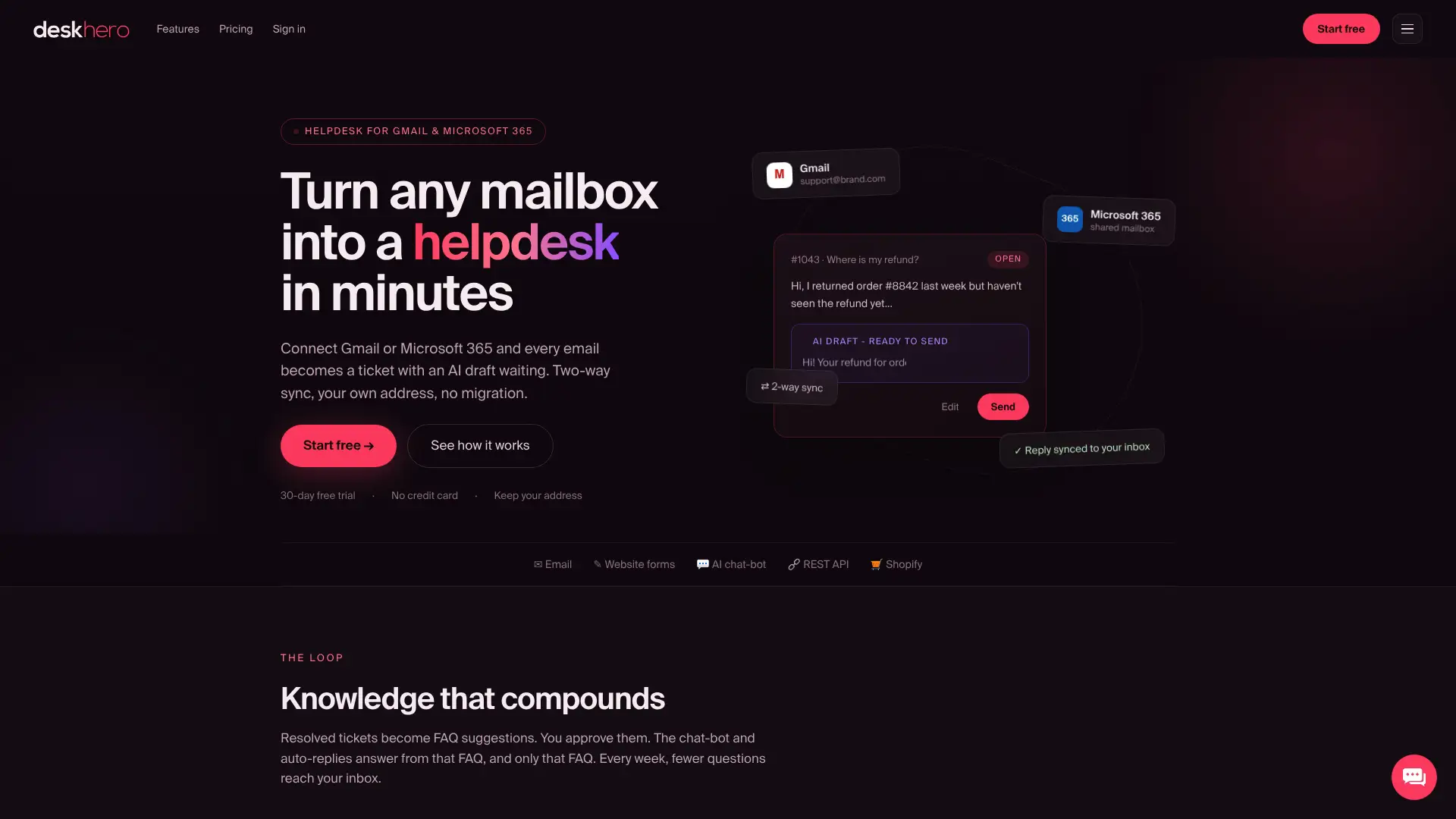
Deskhero is a helpdesk for small and mid-sized support teams. Connect a Microsoft 365 mailbox through its OAuth flow, including a supported shared mailbox, and keep using the existing support address. The mailbox connection does not require a new public address or DNS changes.
What Deskhero adds to your Outlook workflow:
- Two-way email sync so replies go out from your company address
- Automatic ticket creation, with replies on the same conversation joined to the existing ticket
- AI-generated reply suggestions grounded in workspace knowledge, including answered tickets, internal knowledge, approved FAQ items, and scraped website pages
- New-ticket automation rules for assignment, groups, status, priority, tags, and supported custom fields
- An internal knowledge base with group-level access
- Suggested public FAQ entries that a User reviews before anything becomes public
- Statistics for volumes, response times, SLA results, Users, channels, and AI features, plus a separate topics cluster
- Multilingual support across 14 languages
- Microsoft SSO and a full REST API
- A Shopify customer panel for e-commerce support teams
Onboarding steps for a Deskhero pilot:
- Sign up at Deskhero (no credit card required for the 30-day trial).
- Connect your Microsoft 365 mailbox via OAuth in the admin panel.
- Confirm send-as mapping so outbound replies show your company address.
- Invite Users and set roles.
- Configure a small set of new-ticket automation rules and, if needed, an SLA policy with first-reply and resolution targets.
- Run acceptance tests: send a test email, confirm ticket creation, reply, verify the customer-side reply address.
What makes Deskhero different from a generic add-in: AI reply suggestions use the workspace knowledge pool, while customer-facing AI chat and auto-replies use only the approved public FAQ. Users review suggested replies before sending. Automatic answers are opt-in, labeled, and recorded on the ticket timeline.
Pilot metrics to track in Deskhero:
- First response time (baseline in week 1, target improvement by week 4)
- SLA compliance percentage
- Tickets assigned vs. unassigned at end of each day
- A reviewed sample of AI drafts for accuracy and editing effort
Pro Tip: Review a representative sample of AI suggestions during the pilot. Improve the underlying workspace knowledge when a draft is incomplete or inaccurate, and keep human review in the sending workflow.
What actually makes a pilot succeed or fail
A technically successful connection is only one part of a useful pilot. The team also needs clear ownership of the rollout, documented queue conventions, and measures tied to the problems the new system is meant to solve.
Assign one pilot owner to maintain routing rules, answer workflow questions, and review the results. That person does not need to make every decision alone, but the team should know where configuration changes and feedback are coordinated.
If practical, begin with a controlled slice of traffic, such as one request category or mailbox. Expand after Users have completed end-to-end tests and the routing, notifications, reply address, and service targets behave as expected.
Include representative busy-day scenarios in acceptance testing. Test common request types, unusual attachments, customer follow-ups, and any rule combinations that could route a ticket differently.
Train Users on the actions they will perform every day: finding and claiming work, replying or adding a private note, changing status, and handing off a ticket. Keep a short reference guide in the team's normal collaboration space.
Explain how metrics and AI suggestions will be used before the pilot begins. Users should understand that suggested replies are drafts to review, not instructions they must accept.
Your first 30 days with Deskhero, measured
Deskhero turns messages from a connected Microsoft 365 mailbox into tickets while keeping the company's support address. Users work in a shared ticket queue, and AI reply suggestions appear as drafts for review.
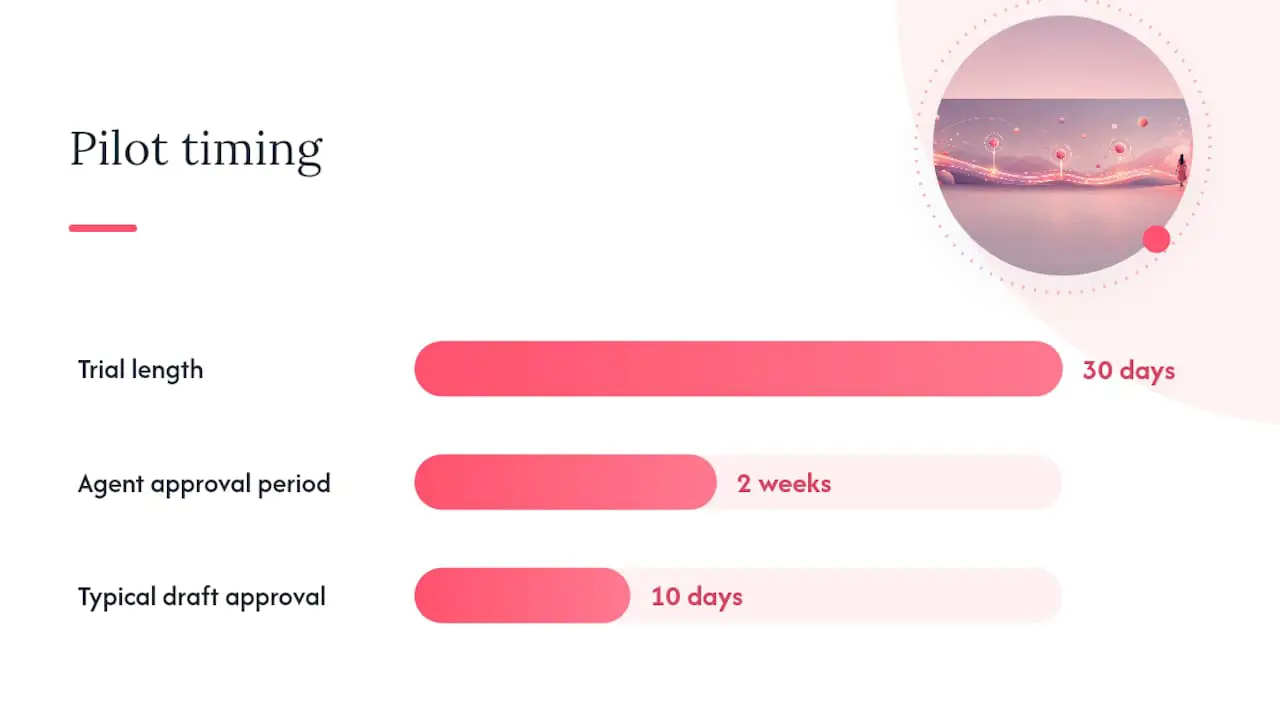
The 30-day free trial does not require a credit card. Connect the Microsoft 365 mailbox, invite Users, configure only the rules and SLA policies needed for the pilot, and compare these measures with the Outlook baseline:
- First response time
- SLA attainment, if service targets are configured
- Assigned and unassigned tickets at the end of the day
- User feedback on the workflow
- Accuracy and editing effort in a sample of AI reply suggestions
Use the trial results to decide whether the workflow solves the problems identified at the start. Keep the comparison tied to your own baseline and service goals.
Sources
- Create a shared mailbox - Microsoft Learn
- New Microsoft study reveals the rise of the infinite workday - Microsoft News
FAQ
Does Outlook have a built-in helpdesk?
No. Outlook has no native ticket fields, SLA enforcement, or reporting. You can approximate a helpdesk using a shared mailbox, rules, and templates, but ownership and accountability remain manual conventions rather than system-enforced behaviors.
How do you use Outlook as a ticketing system?
Create a shared mailbox in the Microsoft 365 admin center, build Outlook rules to sort emails into folders, use categories for status or priority, and save common replies as templates. Document how Users claim, hand off, and resolve requests.
Can I turn an Outlook email into a task or ticket automatically?
Yes, with an add-in or server-side helpdesk integration. The exact behavior varies by product. Deskhero's mailbox connection turns inbound messages into tickets and joins replies from the same conversation to the existing ticket.
How do I start an email to a helpdesk?
Address it to the team's shared support address, include a clear subject line, and attach any relevant files. Reply to the existing conversation for follow-up messages unless the support team instructs you otherwise.
When should I stop using Outlook for customer support?
Consider an integrated helpdesk when the team misses or duplicates requests, ownership and handoffs are unclear, service targets cannot be tracked, or reporting requires manual counting. These symptoms matter more than a universal message or User threshold.