Gmail Shared Inbox for Support Teams: Setup Guide

Google Workspace offers several ways to share incoming email, but they do not all work inside the Gmail inbox. Google Groups Collaborative Inbox provides assignment and completion controls in Google Groups. Gmail delegation lets several people work from one Gmail account. Google is also rolling out a newer shared inbox feature in the Admin console. The right choice depends on the workflow your team needs.
Gmail shared mailbox decision guide
For a team that needs basic ownership tracking without adding another product, Collaborative Inbox is a useful starting point. Delegation is simpler when a small group only needs to read and reply from one mailbox. A helpdesk becomes useful when email needs to become structured tickets with configurable statuses, service targets, routing rules, and reporting.
Table of Contents
- How does a Gmail shared inbox actually work?
- How to set up a Gmail Collaborative Inbox step by step
- How members access and work the shared inbox daily
- Operating rules for a well-run shared inbox
- Common problems and how to fix them
- Key Takeaways
- When to stay in Gmail and when to switch to a helpdesk
- Deskhero turns your Gmail address into a support system
- FAQ
How does a Gmail shared inbox actually work?
The term “shared inbox” can refer to several different Google Workspace setups. Choosing the right one starts with understanding where people work and what coordination controls they get.

Google Groups Collaborative Inbox turns a Google Group into a shared queue. Members with the required permissions can take a conversation, assign it to another member, and mark it complete, duplicate, or as requiring no action. They can also search by assignee or resolution status. This work happens in Google Groups, not in the standard Gmail inbox. Google’s setup documentation explains the available actions and required permissions.
Gmail delegation grants other people access to a Gmail account. A delegate can read, send, and delete email without knowing the account password. The delegated inbox opens in a separate browser tab through Gmail’s account switcher. Delegation provides shared mailbox access, but it does not add conversation assignment or workflow statuses.
Google Workspace shared inbox is a newer Admin console feature that Google is releasing in phases. An administrator can create a shared email address, add delegates, and let them read, send, and delete messages. Google advises organizations that do not yet see this option to use delegated Gmail accounts until the feature reaches them.
A third-party helpdesk such as Deskhero connects to a Google mailbox and turns incoming messages into tickets. It adds structured fields, assignment, configurable statuses, new-ticket automations, SLA policies, and Statistics while keeping the company email address.
| Dimension | Collaborative Inbox | Delegated or shared Gmail inbox | Helpdesk |
|---|---|---|---|
| Where work happens | Google Groups | Gmail | Helpdesk interface |
| Assignment model | Take or assign conversations | Coordination by team convention | Ticket assignee and group |
| Status tracking | Completion and resolution states | Mail states such as read and unread | Configurable ticket statuses |
| Setup | Google Group plus permissions | Mailbox plus delegates | Connect the mailbox |
| SLA and reporting | No helpdesk SLA reporting | No helpdesk SLA reporting | Product dependent |
| External senders | Allowed when group permissions permit | Yes | Yes |
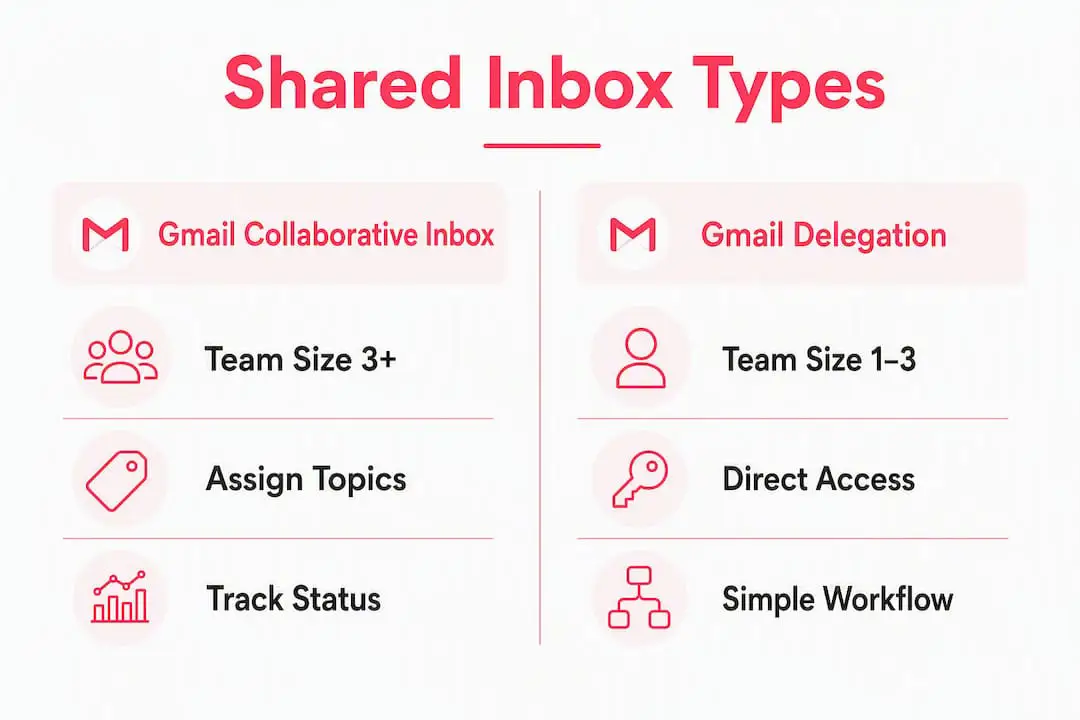
Do not choose solely by headcount. A two-person billing team may need ticket fields and audit history, while a larger internal discussion group may be comfortable in Google Groups. Message volume, reporting needs, and the cost of missed replies are better signals.
How to set up a Gmail Collaborative Inbox step by step
Admin prerequisites
Confirm that Google Groups is available for your organization. If it is not, ask a Google Workspace administrator to enable Groups for Business. You also need to be an owner or manager of the group you want to convert. Members need the appropriate group permissions before they can take, assign, or complete conversations.
Creating the group and enabling Collaborative Inbox
- Create the group and add the people who will work on conversations.
- Open the group at Google Groups.
- Open Group settings.
- Make sure conversation history is enabled. Collaborative Inbox features require it.
- Under Enable additional Google Groups features, select Collaborative Inbox.
- Review posting permissions. A customer-facing group must allow the intended external senders to post.
- Assign the permissions that let members moderate metadata and perform the collaboration tasks they need.
Permissions checklist
| Task | Google permission to review | Why it matters |
|---|---|---|
| Take a conversation | Who can moderate metadata | Lets a member claim ownership |
| Assign or unassign | Who can moderate metadata | Lets the team route work explicitly |
| Mark complete | Who can moderate metadata | Keeps finished work out of active views |
| Mark duplicate or no action needed | Who can moderate content | Handles conversations that should not be answered |
Owners and managers configure the group, but role names alone do not guarantee every collaboration action. Check the permissions themselves and test with an ordinary member account.
Testing and validation
Send a message from an external address if the group is intended for customers. Open the group at groups.google.com and confirm that the conversation appears. Then test taking it, assigning it to another member, replying from the group, and marking it complete. If external mail does not arrive, review who can post. If collaboration controls are missing, check conversation history, the Collaborative Inbox setting, and moderation permissions.
Pro Tip: Use a small pilot group before moving a live support address. A pilot exposes permission and sender-identity problems without putting customer messages at risk.
Templates for recurring support questions can reduce repetitive writing. Keep each template short, review it regularly, and leave room for the person replying to address the customer’s specific situation.
How members access and work the shared inbox daily
Collaborative Inbox members work in Google Groups. They can open groups.google.com, select the group, and use its conversation list. It does not appear as a shared queue in Gmail’s left sidebar.
A practical daily workflow is:
- Review unassigned conversations: Make sure new work is visible to someone responsible for triage.
- Take or assign each conversation: Give every item one clear owner.
- Reply with the correct sender identity: Verify the group’s posting and sender settings before launch.
- Mark work complete: Use the group’s completion controls instead of treating read status as progress.
- Search by assignee or resolution status: Use these views to find stalled work.
Delegated Gmail works differently. A delegate signs in to their own Gmail account, opens the profile menu, and selects the account marked as delegated. Gmail opens the delegated inbox in a new tab. Delegates should never share the mailbox password. Google notes that sender information can identify both the mailbox and the delegate, depending on the shared inbox settings.
Gmail templates can help with repeated answers, while labels and filters can organize messages. These are mail-management tools, not substitutes for assignment and completion controls. Document how the team uses them so that a label has one consistent meaning.

Pro Tip: Begin each shift with triage. Assign new conversations before spending time on the easiest reply. This reduces the chance that a difficult message remains unowned.
Operating rules for a well-run shared inbox
A shared inbox succeeds when the team can answer three questions quickly: Who owns this? What state is it in? What must happen next? The software should reinforce those answers, but the operating rules come first.
Give every active conversation one owner. Read and unread states show whether someone opened a message, not whether the work is underway. In Collaborative Inbox, use take, assign, and complete. With delegation, define a lightweight label convention and make one person responsible for triage.
Useful rules include:
- Rotate triage responsibility. Name the person who reviews incoming work for each shift or day.
- Define each state. Write down what new, waiting, and complete mean for your team.
- Set realistic response targets. Base them on coverage and customer need, then review actual performance.
- Use templates as a starting point. Personalize the answer and remove obsolete wording.
- Track a small set of useful measures. First reply and resolution time are easier to act on than a crowded dashboard.
Gmail filters can route or label predictable messages. Google Groups provides assignment and completion controls. If the process depends on more detailed ticket fields, business-hour SLA clocks, or structured reporting, a helpdesk may be the cleaner system.
Pro Tip: Review a sample of missed or slow conversations before changing tools. The sample will show whether the cause is unclear ownership, insufficient coverage, poor routing, or a product limitation.
Common problems and how to fix them
Most shared inbox failures come from mixing up Google Groups and Gmail, or from setting access without testing the resulting permissions.
| Problem | Likely cause | Fix |
|---|---|---|
| Member cannot take or complete a conversation | Collaborative Inbox or moderation permission is missing | Enable the feature and review metadata and content moderation permissions |
| External email does not arrive | The group does not allow that sender to post | Review posting permissions and test from outside the organization |
| Collaborative Inbox is not visible in Gmail | It is a Google Groups interface, not a Gmail sidebar queue | Open the group at groups.google.com |
| Delegate cannot find the mailbox | The invitation was not accepted or access has not propagated | Accept the invitation, allow time for access, then use Gmail’s account switcher |
| Shared inbox option is missing in Admin console | The phased rollout has not reached the organization | Use delegated Gmail accounts in the meantime |
| Two people answer the same message | Ownership is unclear | Use Collaborative Inbox assignment or a documented single-owner process |
For delegated accounts, Gmail’s account switcher is the supported way to open the shared mailbox. The delegated inbox opens separately from the person’s own inbox. Do not ask people to log in with shared credentials, because that defeats the purpose of delegation and makes individual access harder to manage.
Audit access when someone changes roles or leaves the team. Also repeat the end-to-end sender test after changing group, delegation, or routing settings.
Key Takeaways
A Google Workspace shared inbox works best when the team chooses the correct product surface and uses explicit ownership from the first day.
| Point | Details |
|---|---|
| Collaborative Inbox lives in Google Groups | It supports taking, assigning, and completing conversations when permissions are configured. |
| Delegation lives in Gmail | It lets delegates read, send, and delete mail from another account. |
| The Admin shared inbox is rolling out | Organizations that do not see it yet can continue using delegated accounts. |
| Ownership matters more than read status | Give every active conversation one responsible person and one clear next action. |
| A helpdesk adds structure | Choose one when you need tickets, configurable workflows, SLA policies, or reporting. |
When to stay in Gmail and when to switch to a helpdesk
Stay with Google’s native tools when the workflow is understandable at a glance and the team can reliably coordinate with the controls available. Delegation is suitable when shared access is the main requirement. Collaborative Inbox is useful when conversation ownership and completion are important but a full ticketing system would add unnecessary overhead.
Consider a helpdesk when email needs structured ticket fields, configurable statuses, multiple support groups, automated routing on arrival, SLA policies, or consistent reporting. Another warning sign is a growing reliance on private spreadsheets and improvised labels to explain what should happen next.
Do not use an arbitrary team size or daily-message threshold as the deciding rule. A regulated or time-sensitive workflow may need a helpdesk at low volume. A straightforward internal mailbox may remain manageable at a higher volume.
Plan the transition around one mailbox. Document the current sender identity, routing, ownership, and closure rules. Connect the mailbox, test inbound and outbound messages, train the Users who will work tickets, and agree on a cutover time. Running two systems against the same live mailbox can create duplicate processing, so use a controlled test instead.
The best migration preserves what customers already know. Keep the public address, test reply delivery, and make internal workflow changes without forcing customers to learn a new channel.
Deskhero turns your Gmail address into a support system
Deskhero connects to Gmail or Google Workspace through OAuth with two-way synchronization. Incoming email becomes a ticket in a shared queue. Each ticket can have a group, assignee, status, priority, tags, and custom fields. Replies continue to use the company’s own email address.
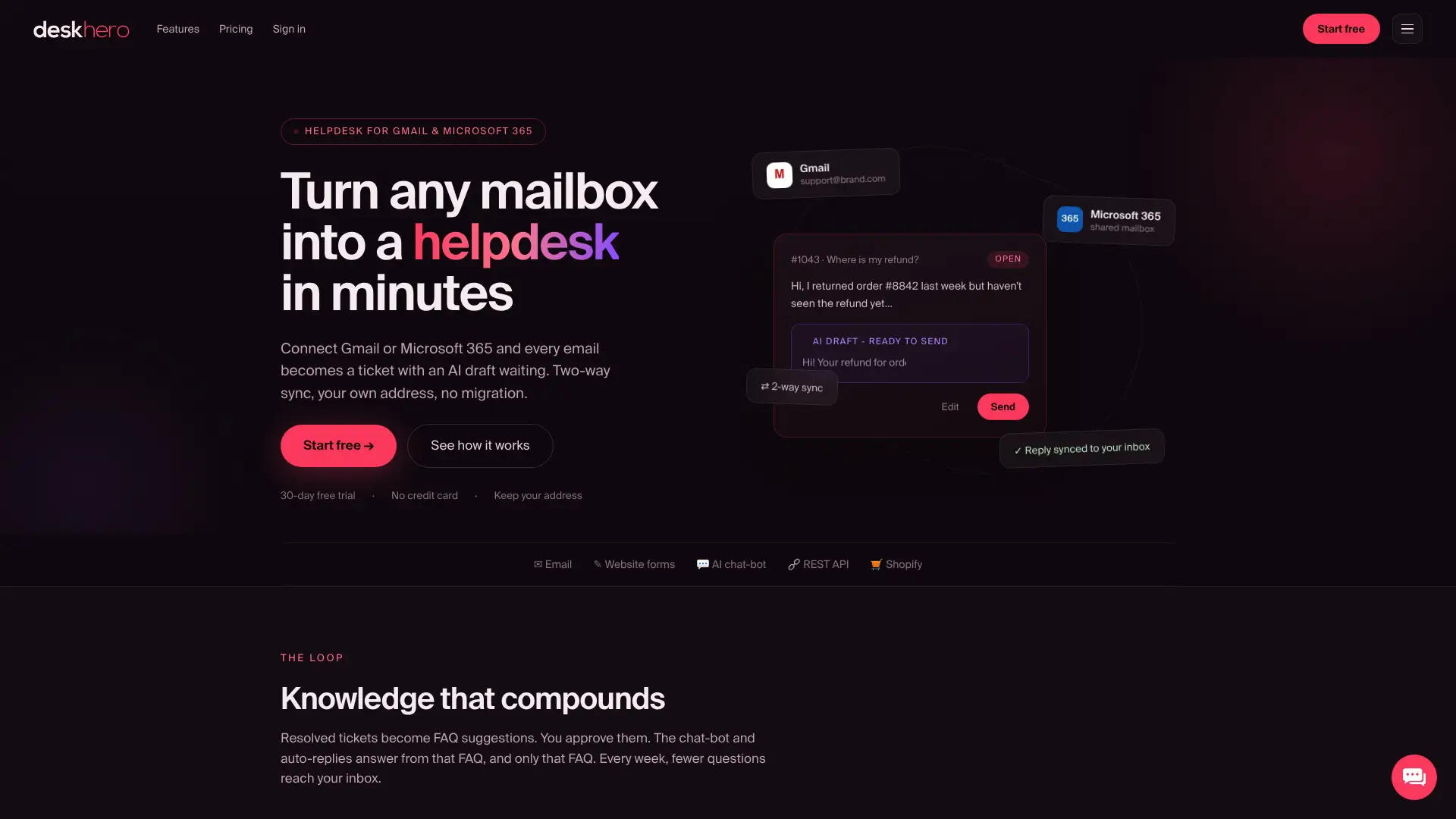
Connecting a Google Workspace mailbox starts with choosing the target group and authorizing the mailbox. Deskhero can then apply ordered automations to new tickets, set assignment or other ticket properties, and track first reply and resolution targets with SLA policies.
Users can review operational information on the Dashboard and detailed reporting in Statistics. AI suggested replies use workspace knowledge, while customer-facing AI auto-replies and the optional chat-bot answer only from approved public FAQ content. The chat-bot requires at least 100 approved FAQ items before it can be enabled.
Deskhero supports 14 interface languages and includes translation tools for ticket conversations. Teams can start with a 30-day free trial, and no credit card is required.
Useful sources
- Make a group a Collaborative Inbox, Google Workspace Learning Center
- Create a shared inbox, Google Workspace Help
- Delegate and collaborate on email, Gmail Help
- Shared inbox and ticketing features, Deskhero
- How to connect a Google Workspace mailbox, Deskhero
FAQ
Can you have a shared inbox in Gmail?
Yes. Gmail delegation lets multiple people access one Gmail account. Google is also rolling out an Admin console shared inbox feature based on delegates. Google Groups Collaborative Inbox is another option, but its assignment and completion workflow lives in Google Groups rather than the Gmail inbox.
What is the difference between Google Collaborative Inbox and a shared inbox?
Collaborative Inbox is a Google Groups feature with controls for taking, assigning, and completing conversations. “Shared inbox” is a broader term that can also describe a delegated Gmail mailbox, Google’s newer Admin console feature, or a helpdesk queue.
How do you view a shared mailbox in Gmail?
For a delegated account, sign in to your own Gmail account, open the profile menu, and select the account marked as delegated. It opens in a new browser tab. For Collaborative Inbox, open the group at groups.google.com.
Why are my Gmail inboxes combined?
A combined view can display mail from more than one account. For a delegated inbox on the web, use Gmail’s account switcher and open the delegated account in its own tab. Check the address shown in Gmail before replying.
When should a team move from Collaborative Inbox to a helpdesk?
Move when the team needs a structured ticket workflow that native group controls do not provide, such as configurable fields and statuses, SLA policies, new-ticket routing automations, or detailed reporting. Make the decision from workflow needs rather than a fixed headcount.