Two-Way Helpdesk Email Sync: Setup Guide for Support Teams
Two-way helpdesk email sync turns incoming customer email into tickets and sends replies from the support team back to the customer by email. The customer keeps using a familiar email thread, while the team works from a shared inbox with assignment, notes, search, and reporting.
Deskhero supports full two-way sync with Gmail, Google Workspace, Microsoft 365, and Outlook through provider connections. Microsoft shared mailboxes are supported too. For another domain you own, Deskhero provides a DNS-based option that combines authenticated outbound sending with inbound forwarding. You can also use a Deskhero-provided address that works immediately.
Your next moves:
- Choose the mailbox type that matches your email provider.
- Complete the provider authorization or the DNS and forwarding steps shown in Deskhero.
- Attach the mailbox to the group that should receive its tickets.
- Test a new message, a User reply, a customer follow-up, and an attachment.
Pro Tip: Do not change DNS from a generic checklist. Use the exact records Deskhero displays for your domain, then wait for verification before testing outbound mail.
Key Takeaways
Reliable helpdesk email sync starts with the right connection method. Google and Microsoft mailboxes use provider authorization, while a mailbox on another owned domain uses Deskhero's DNS and forwarding flow.
| Point | Details |
|---|---|
| Match the method to the provider | Use the Google or Microsoft connection for full two-way sync. Use DNS plus forwarding for another domain you own. |
| Follow the displayed DNS records | Deskhero's DNS mailbox setup provides three CNAME records for DKIM authentication. |
| Test a complete conversation | Check the first inbound message, the outbound reply, the customer follow-up, and attachments. |
| Route by group | Each mailbox belongs to one group, which determines where new tickets arrive. |
| Keep the existing address | Deskhero lets a team work from a shared inbox while customers continue to email the address they know. |
Table of Contents
- How Does Helpdesk Email Sync Actually Work?
- What Are the Main Ways to Connect Your Mailbox?
- What DNS Records Do You Need for Reliable Sync?
- What Should You Test Before Going Live?
- How Should Users Reply to Keep Threads Intact?
- When Should You Move Beyond Manual Forwarding?
- Editorial Take: Treat Sync as a Workflow
- Get Two-Way Sync Running Without Changing Your Address
- Sources
- FAQ
How Does Helpdesk Email Sync Actually Work?
Email sync connects two views of the same support conversation. In the customer's inbox, the exchange looks like a normal email thread. In the helpdesk, the initial message creates a ticket and later messages appear in that ticket's conversation.
Inbound processing identifies the sender, subject, message content, and conversation headers. Outbound processing sends a User's reply to the customer and includes the headers needed for threading. Deskhero's Google and Microsoft connections handle both directions. A DNS mailbox receives mail through a unique forwarding address and sends authenticated replies from the company's address.
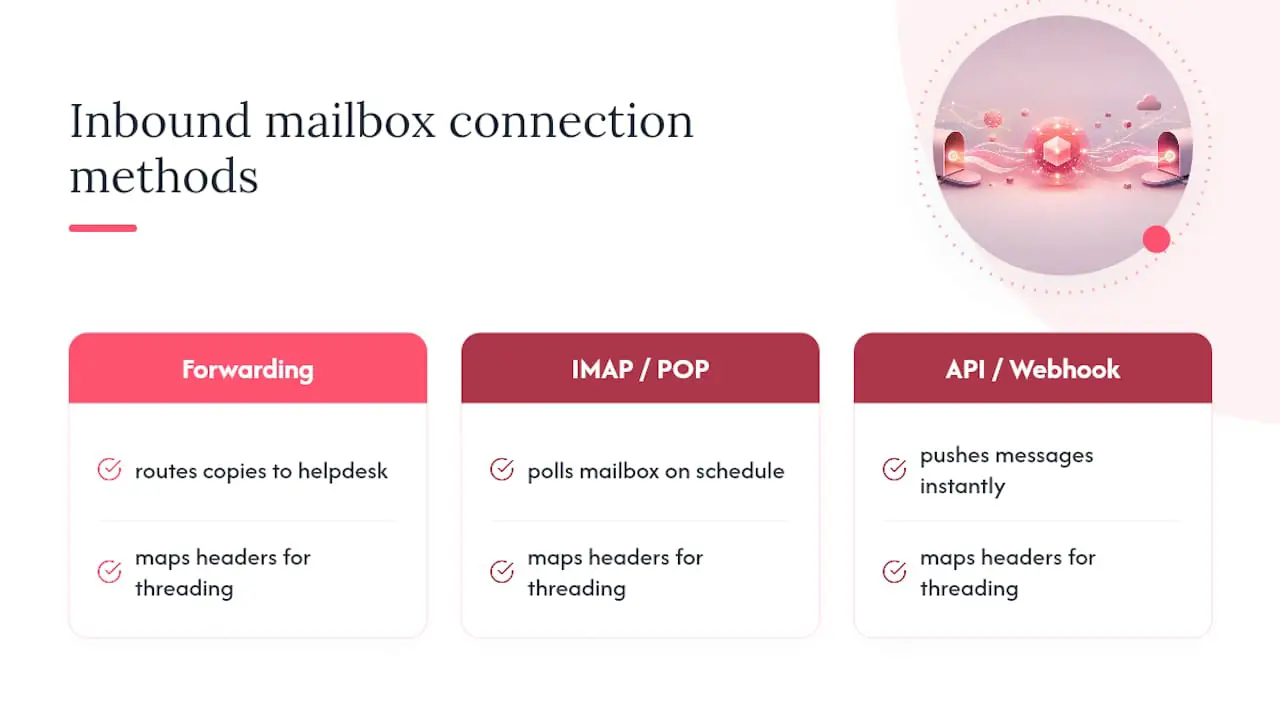
Threading relies on standard email identifiers such as Message-ID, References, and In-Reply-To. Support teams should reply from the ticket rather than start a separate message from a personal mailbox. When a customer replies to the existing conversation, Deskhero adds that reply to the same ticket.
Email is only one way to create a Deskhero ticket. Embedded forms and the optional AI chat-bot can also create tickets. Those channels share the same ticket workspace, but they are not email synchronization methods.
Pro Tip: Use a subject that is easy to recognize during testing. Confirm that the original message, the User's response, and the customer's follow-up all appear on one ticket before inviting the whole team.
What Are the Main Ways to Connect Your Mailbox?
Deskhero offers four practical mailbox choices. The correct one depends on where the address is hosted and whether you want to keep an existing company address.
Google mailbox connection supports Gmail and Google Workspace through provider authorization. Deskhero reads incoming mail, sends replies as the connected address, and manages mailbox state needed for synchronization.
- Best for: an existing Gmail or Google Workspace address.
- Setup focus: authorize the requested access and choose the Deskhero group that should receive tickets.
Microsoft mailbox connection supports Microsoft 365 and Outlook through provider authorization. It also supports Microsoft shared mailboxes, such as support@ or info@ addresses.
- Best for: an existing Microsoft 365, Outlook, or Microsoft shared mailbox.
- Setup focus: sign in with an account that has the required mailbox access and complete any organization approval your Microsoft administrator requires.
DNS-based mailbox is for an address on another domain you own. Deskhero asks you to add three CNAME records for DKIM, then forward incoming mail to the unique address it supplies.
- Best for: keeping an address on an owned domain that is not connected through Google or Microsoft.
- Setup focus: publish the exact records shown, configure forwarding, and run the mailbox verification test.
Deskhero-provided mailbox uses an address on the workspace's built-in Deskhero domain. It works without configuring an owned domain.
- Best for: evaluation, a new support operation, or any team that does not need a custom address yet.
- Setup focus: select the receiving group and test the address.
IMAP is available for a one-time import of sent mail, not for ongoing mailbox sync. POP polling and custom SMTP connections are not Deskhero mailbox connection options. The Gmail shared inbox guide and the guide to connecting Outlook provide provider-specific context.
Pro Tip: Connect the address customers already use when possible. Keeping one public support address reduces retraining for customers and avoids splitting new requests across old and new inboxes.
What DNS Records Do You Need for Reliable Sync?
This section applies to Deskhero's DNS-based mailbox option. Google and Microsoft connections use their provider authorization flows instead.
Deskhero provides three CNAME records for DKIM when you add a mailbox on a domain you own. DKIM lets receiving mail systems verify that Deskhero is authorized to sign outgoing mail for that domain. Copy the host names and values exactly as displayed. DNS dashboards sometimes add the domain name automatically, so check the resulting record rather than assuming the saved value is correct.
Inbound mail uses a separate forwarding step. Configure the original address to forward messages to the unique Deskhero forwarding address shown in the mailbox setup. Deskhero then creates tickets from those messages and routes them to the mailbox's group.
SPF and DMARC may already be part of your organization's broader email policy, but they are not substitutes for the three DKIM CNAME records Deskhero displays. Do not create a second SPF record or change a DMARC policy based only on a general helpdesk guide. Ask the person who manages the domain to review any change outside Deskhero's displayed setup.
Practical DNS actions:
- Copy all three DKIM CNAME records from Deskhero.
- Check whether the DNS host automatically appends the domain name.
- Wait for the records to resolve, then use Deskhero's verification flow.
- Configure inbound forwarding to the unique Deskhero address.
The mailbox can show states such as Activation in progress, Forwarding required, Re-authentication required, or Active. Treat Active as the starting point for end-to-end testing, not as proof that every customer email client will display the conversation exactly as expected.
Pro Tip: Take a screenshot of the records before saving them in the DNS provider. It gives the domain administrator a quick reference if a value is shortened, expanded, or entered in the wrong field.
What Should You Test Before Going Live?
A connection can succeed while routing, permissions, or forwarding still needs attention. Test the full conversation from an external address before making the mailbox the team's primary support channel.
Before connecting anything:
- Confirm which provider hosts the mailbox and whether it is a standard or shared mailbox.
- Choose the Deskhero group that should own new tickets from the address.
- Make sure the person connecting the mailbox has the provider permissions needed to authorize it.
- For a DNS mailbox, identify who can edit the domain records and forwarding settings.
After connecting, test in this order:
- Send a new message from an external email address and confirm that one ticket appears in the correct group.
- Reply from Deskhero and confirm that the message arrives from the expected company address.
- Reply from the customer's inbox and confirm that the follow-up joins the existing ticket.
- Repeat the exchange with an attachment and inspect the sender, recipients, subject, and message order.
Common failures and checks:
- No inbound ticket: check the mailbox state, provider authorization, group assignment, and any forwarding rule.
- Outbound reply does not arrive: check whether activation is still in progress or re-authentication is required. For DNS mailboxes, recheck all three CNAME values.
- A follow-up creates a new ticket: confirm the customer replied to the existing message and that no mail rule rewrote or removed the conversation headers.
- Only a forwarding copy arrives: for a DNS mailbox, confirm that outbound authentication and mailbox verification were completed too.
The time required depends on provider authorization and, for DNS mailboxes, DNS propagation and forwarding. Deskhero's guide to forwarding emails into Deskhero covers the forwarding sequence.
Pro Tip: Use a personal external address for the test. That lets you see the sender name, address, threading, formatting, and attachment experience from the customer's side.
How Should Users Reply to Keep Threads Intact?
Users should reply from the Deskhero ticket, keep the existing conversation subject, and allow the connected mailbox to handle the email headers. Starting a new message from a personal mailbox creates a separate conversation outside the ticket workflow.
A few rules worth putting in your team's onboarding document:
- Reply from the ticket rather than from a copied notification or personal inbox.
- Check the To, CC, and BCC fields before sending. Deskhero removes invalid and duplicate recipients, but the User still owns the final recipient choice.
- Use private notes for internal context. Private notes are never emailed to the customer.
- Keep large or sensitive files within the team's approved sharing policy.
- Use the send-and-set-status option when the reply should also move the ticket to its next workflow state.
Deskhero can place an AI-drafted response in the reply editor. Suggested replies use workspace knowledge, including approved public FAQ, internal knowledge, answered tickets, imported sent mail, and scraped website content. A User accepts, edits, or dismisses the draft. Customer-facing AI auto-replies are a separate opt-in feature and use only approved public FAQ content.
Pro Tip: Use a private note when a teammate needs context but the customer does not. It keeps the internal discussion beside the conversation without adding it to the email thread.
When Should You Move Beyond Manual Forwarding?
Manual forwarding can deliver messages to several people, but it does not by itself provide ticket ownership, private notes, shared status, consistent routing, or a complete support timeline. Move to a shared helpdesk when the team can no longer answer basic operational questions from the mailbox alone.
Decision criteria worth weighing:
- Ownership: can everyone see who is responsible for each request?
- Service targets: do you need measurable first-response and resolution deadlines?
- Routing: should messages from different addresses reach different groups?
- Knowledge reuse: would Users benefit from AI drafts grounded in previous answers and internal material?
- Channel consolidation: do email, forms, and chat need to create tickets in one workspace?
Deskhero combines connected mailboxes with group routing, assignment, custom statuses, priorities, tags, private notes, automation rules, and SLA policies. Its interface is available in 14 languages. Teams can keep their existing Google or Microsoft address, or use the DNS-based forwarding option for another owned domain.
| Signal | What It Means for You |
|---|---|
| Unclear ticket ownership | Use assignment and group routing instead of relying on mailbox folders |
| Response commitments | Use SLA policies to track first-response and resolution targets |
| Email, forms, and chat | Bring the channels into one ticket workspace with a shared history |
Editorial Take: Treat Sync as a Workflow
Email sync is not finished when a connection screen says Active. A useful launch test proves that a real customer can send a message, receive a reply from the expected address, respond again, and remain on the same ticket. It also proves that the ticket reached the right group and is visible to the right Users.
The technical setup and the team's habits reinforce each other. Provider authorization or DNS records establish the mail path. Group routing, assignment, private notes, and consistent replies from the ticket make that path usable in daily support work.
Write down the expected route for each public address. Record the target group, mailbox owner, connection type, and a test contact. When a message goes missing or a provider asks for renewed authorization, the team has a short diagnostic checklist instead of guessing.
Get Two-Way Sync Running Without Changing Your Address
Deskhero turns an existing Gmail, Google Workspace, Microsoft 365, or Outlook mailbox into a shared helpdesk while customers continue to use the same address. Microsoft shared mailboxes are supported. For another domain you own, the DNS-based option combines authenticated outbound mail with inbound forwarding.
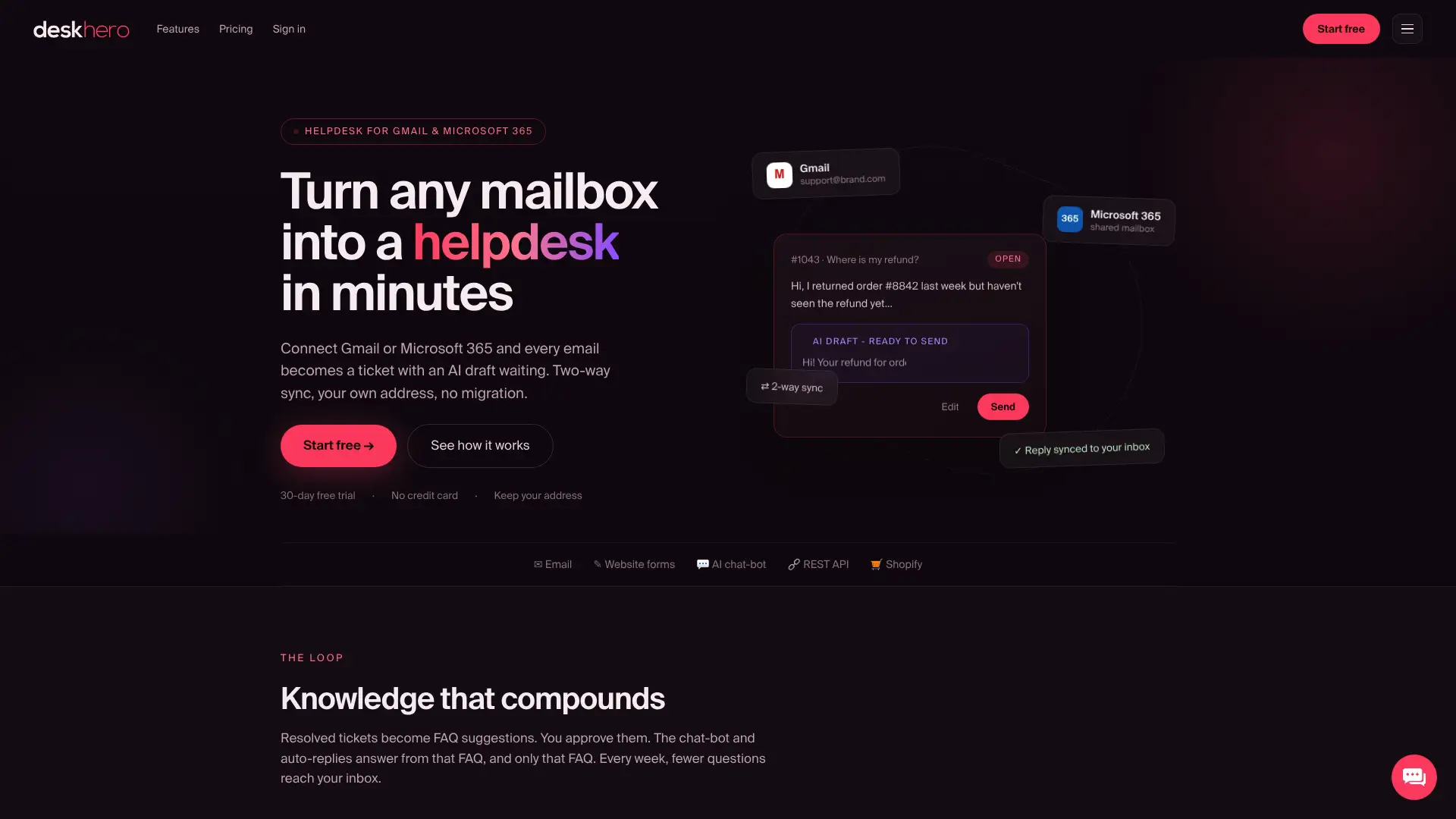
After the mailbox is connected, the team can add group routing, assignment, private notes, automation, SLA policies, and AI reply drafts grounded in workspace knowledge. New workspaces start with a 30-day free trial, and no credit card is needed to begin.
Sources
- PostHog email connection documentation, an example of a separate helpdesk's forwarding, DNS verification, outbound sending, and threading flow.
FAQ
What is helpdesk email sync?
It connects an email mailbox to a ticket workspace. Incoming customer messages become tickets, replies from Users are delivered by email, and later customer responses can continue on the same ticket.
Do I need to migrate my mailbox to get two-way sync?
No. Deskhero connects to Gmail, Google Workspace, Microsoft 365, and Outlook, including Microsoft shared mailboxes. You can keep the existing address. Another owned domain can use Deskhero's DNS and forwarding option.
Why is my connected mailbox not sending replies?
Check the mailbox state first. A provider connection may need renewed authorization. A DNS mailbox may still be activating or may have an incorrect DKIM CNAME record. Review the exact status and setup instructions shown in Deskhero.
How long does helpdesk email sync setup take?
Google and Microsoft setup depends on authorization and any approval required by the organization. A DNS mailbox can take longer because its CNAME records must propagate and inbound forwarding must also be configured.
What can cause a separate ticket for a follow-up?
A separate message, a changed conversation subject, or a mail rule that rewrites or removes threading headers can prevent a follow-up from matching the original ticket. Test by replying directly to the message Deskhero sent.