Keep Your Support Email: Outlook Helpdesk Setup for Small IT Teams

Outlook can serve as a lightweight support inbox for a small team if you build a clear process around a shared mailbox. Start with three moves: create the shared mailbox, grant the right access, and add a small set of rules for incoming mail. Folders, categories, flags, and templates can help the team stay organized, but they do not provide ticket ownership, audit history, or reporting. When those gaps become costly, a dedicated helpdesk such as Deskhero can connect to the same Microsoft 365 address.
TL;DR:
- A shared mailbox gives a small support team one place to read and answer messages from a common address.
- Folders can represent status, while categories can represent owner, priority, or request type.
- Inbox rules and reusable reply text reduce repetitive triage, but the workflow still depends on consistent manual handling.
- Grant Full Access and sending permissions only to the people who need them, and protect their individual Microsoft 365 accounts with multi-factor authentication.
- A dedicated helpdesk adds structured ticket fields, assignment, automation, and reporting while preserving the support address customers already use.
Table of Contents
- Setting Up an Outlook Helpdesk: The Shared Mailbox Foundation
- How Do You Organize a Shared Mailbox Like a Ticket System?
- What Rules and Templates Speed Up First Replies?
- User Permissions and Keeping Replies Secure
- Do You Need an Outlook Add-In for Helpdesk Features?
- When Does Outlook Stop Working as a Helpdesk?
- How Deskhero Closes the Gaps Without Changing Your Address
- A Practical Transition Checklist
- Ready to Move Past Folders and Flags?
- Where to Find the Official Setup Documentation
- Sources
- FAQ
Setting Up an Outlook Helpdesk: The Shared Mailbox Foundation
Every Outlook helpdesk setup starts with a shared mailbox that becomes the team's support address. Keep support conversations in that mailbox instead of personal inboxes so authorized team members can search the same history and see what has already been sent.
Here is the basic setup:
- Create the mailbox in the admin center. In the Microsoft 365 admin center, go to Teams & Groups, then Shared mailboxes, and add the address you want to use. If your organization runs a hybrid Exchange environment, follow Microsoft's guidance and manage the mailbox in the on-premises Exchange admin center.
- Assign permissions deliberately. Full Access lets a person open and manage the mailbox, but it does not allow sending. Add Send As if replies should appear to come from the shared address, or Send on Behalf if recipients should see the sender's name alongside the shared mailbox.
- Add the mailbox in Outlook. With automapping enabled, Outlook normally shows the mailbox after the user closes and restarts the app. If it does not appear, wait a few minutes and add it manually. Outlook mobile requires the shared mailbox to be added in the mobile app, or users can access it through Outlook on the web.
- Test before publishing the address. Send a message from an external account, confirm it arrives in the shared mailbox, and verify that a reply uses the intended From address.
Automapping is enabled by default in most Microsoft 365 organizations, but it only works when permissions are assigned directly to users. Microsoft notes that automapping does not work when access is managed through a security group. Deskhero's guide to setting up and troubleshooting a shared mailbox covers common setup checks.
Pro Tip: Test access with a normal team member account, not only an administrator account. That catches missing Full Access or sending permissions before customers start writing to the address.
How Do You Organize a Shared Mailbox Like a Ticket System?
Outlook does not treat an email as a ticket, so the team needs a consistent convention. Folders can represent status, categories can hold simple metadata, and flags can mark messages that need follow-up.
A simple folder structure might include:
- New: unread or unassigned messages
- In Progress: messages someone is actively handling
- Waiting on User or Vendor: conversations waiting for an external reply
- Resolved: completed conversations retained for search
Categories can represent the owner, priority, or request type. Use one naming scheme, such as "Priority: High" and "Type: Billing," so searches and filters remain useful. Keep the scheme small enough that the team will actually apply it.
Define one claiming action. For example, the person taking responsibility moves the message to In Progress and applies their owner category. Outlook will not enforce that process or prevent two people from replying at the same time, so the team still needs to check the current folder, category, and conversation before responding.
Flags are reminders, not SLA tracking. The team can choose a follow-up interval and review flagged messages daily, but Outlook does not calculate response or resolution targets from this folder structure.
Pro Tip: Assign a rotating owner to review the Waiting folder. Every item should have a next check date or a clear reason to remain there.
What Rules and Templates Speed Up First Replies?
Rules and reusable text reduce repetitive work in a shared mailbox. Start with a few predictable actions and review them after the team has used the process for a week.
- Create rules for obvious routing. Outlook rules can move or categorize incoming messages based on conditions such as sender or subject. Use Microsoft's rules guidance, and test each rule with the mailbox and Outlook version your team uses. Some rule actions in classic Outlook run only while Outlook is open.
- Route only when the signal is reliable. A subject containing "invoice" might justify a Billing category, while a known vendor domain might justify a Vendor category. Avoid broad keyword rules that hide unrelated messages in the wrong folder.
- Use the template feature that matches the reply. Quick Parts and My Templates can insert reusable phrases, while Outlook's mail templates can store more complete messages. Availability and storage differ across Outlook versions and shared-mailbox configurations, so test templates with the actual client your team uses.
- Keep work in the shared mailbox. Forward only when another recipient genuinely needs the message. Routine forwarding creates a second inbox to monitor and can make ownership and context harder to follow.
Give one person responsibility for reviewing rules and templates. Remove obsolete entries, merge duplicates, and make sure policy or pricing text stays current.
User Permissions and Keeping Replies Secure
Microsoft defines three separate shared-mailbox permissions:
- Full Access lets a user open the mailbox and create, read, change, or delete items. It does not allow sending from the mailbox by itself.
- Send As makes outgoing mail appear to come from the shared address.
- Send on Behalf shows the user's name together with the shared mailbox.
Grant access through the Microsoft 365 admin center or Exchange admin center, and review the membership regularly. Remove access promptly when someone changes roles or leaves the team.
A shared mailbox is not intended for direct sign-in, and Microsoft blocks sign-in to new shared mailboxes by default. Users access it through their own accounts, so require multi-factor authentication on those accounts and apply your organization's normal conditional-access policies.

Make it a team rule that replies come from the shared mailbox when the conversation belongs to support. Deskhero's guide to configuring shared mailbox access walks through the relevant admin-center steps.
Do You Need an Outlook Add-In for Helpdesk Features?
An Outlook add-in can add ticket controls inside the email client, but the architecture and requirements vary by vendor. Microsoft also notes that add-in support in shared mailboxes can vary by Outlook version and by how the mailbox is added. Confirm compatibility before choosing a product.
AssistMyTeam is one example of a locally installed Outlook helpdesk. Its Team Edition uses separate Managerial and User installs:
- The Managerial install configures the helpdesk and its database before other users connect.
- The User install is installed for each technician who works on support cases in Outlook.
- The database can use Microsoft SQL Server or Azure SQL. AssistMyTeam's installation documentation also lists 32-bit and 64-bit packages and describes per-user and per-machine installation options.
- Database permissions require planning. The vendor specifies db_datareader and db_datawriter permissions for helpdesk users.
Those requirements describe AssistMyTeam, not every Outlook add-in. Compare deployment model, supported Outlook versions, shared-mailbox behavior, database maintenance, backups, access controls, and reporting before committing. Test one user and one complete support conversation first.
When Does Outlook Stop Working as a Helpdesk?
A shared mailbox remains useful while the manual conventions are easy to follow. Consider a ticketing platform when several of these problems recur:
- Team members spend substantial time moving, categorizing, and rechecking messages.
- Two people reply to the same conversation because ownership is unclear.
- Messages wait unnoticed because flags and folders are not reviewed consistently.
- Managers need reliable response-time, resolution-time, workload, or trend reporting.
- The team needs automation, custom fields, audit history, or structured assignment.
A database-backed Outlook add-in can add structure without moving work out of Outlook, but it may also introduce client deployment and database administration. A cloud helpdesk shifts that maintenance to the service while connecting to the mailbox as a channel.
How Deskhero Closes the Gaps Without Changing Your Address
Deskhero connects to Gmail, Google Workspace, and Microsoft 365 mailboxes, including Microsoft shared mailboxes. Incoming email becomes tickets, and replies are sent from the connected company address.

Deskhero provides ticket status, priority, group, assignee, tags, custom fields, a conversation timeline, dashboard views, and a Statistics area. That replaces folder and category conventions with structured fields that can be filtered and reported on.
Deskhero's customer-facing AI chatbot and AI auto-replies answer only from the approved public FAQ. User-facing draft suggestions can use the wider workspace knowledge pool, including answered tickets, internal knowledge-base content, approved FAQ entries, scraped website pages, imported sent email, and connected Shopify product data. FAQ suggestions can be generated from resolved tickets and scraped pages, but a human must review them before they become part of the approved public FAQ.
You can connect a Microsoft 365 mailbox without replacing the address customers already know. Test inbound mail, outbound replies, threading, permissions, and routing before moving the whole team into a new workflow.
A Practical Transition Checklist
Treat the change as a workflow rollout, not just a mailbox connection. Before inviting the whole team:
- Connect one support mailbox and confirm that new messages create tickets.
- Reply to test conversations and verify the From address and threading.
- Define groups, statuses, priorities, and assignment rules before live volume arrives.
- Decide when team members should stop working directly from Outlook so replies are not duplicated.
- Check ticket filters, notifications, dashboards, and Statistics with representative test data.
- Document the fallback owner for any message that does not sync as expected.
Once the test path is reliable, add Users, explain the new ownership convention, and monitor the first live conversations closely.
Ready to Move Past Folders and Flags?
If manual mailbox upkeep is obscuring ownership or reporting, Deskhero can turn the existing Microsoft 365 mailbox into a structured helpdesk while keeping the same customer-facing address.
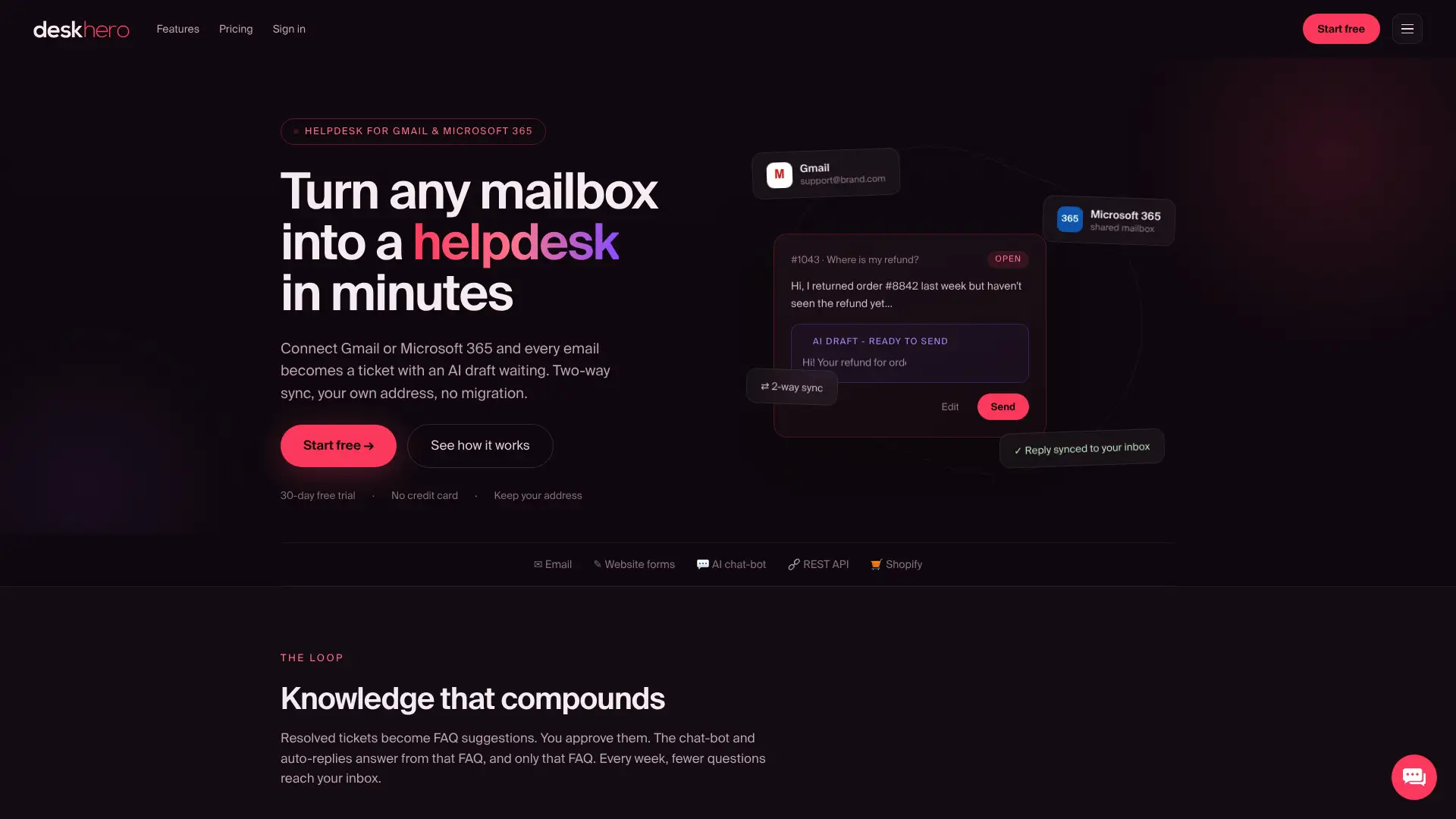
Deskhero offers two-way Microsoft 365 sync, structured tickets, AI-assisted drafts, FAQ suggestions, and fixed Statistics views. For Shopify stores, the Shopify AI support integration can show matched customer and order information in the ticket view.
Here is what to do next:
- Start the 30-day free trial. No credit card is required.
- Read the Microsoft 365 mailbox connection guide for the setup steps.
- Review the AI chatbot feature page. The chatbot requires at least 100 approved public FAQ items before it can be enabled.
Where to Find the Official Setup Documentation
Keep the documentation for the exact tools you deploy:
- Microsoft's shared-mailbox documentation covers creation, permissions, automapping, Outlook access, and mobile access.
- Microsoft's Outlook rules documentation explains conditions, actions, exceptions, rule order, and client-side limitations.
- AssistMyTeam's installation guide documents that product's separate Managerial and User installs and its SQL requirements.
Sources
- Create a shared mailbox - Microsoft 365 admin | Microsoft Learn
- Open and use a shared mailbox in Outlook | Microsoft Support
- Manage email messages by using rules in Outlook | Microsoft Support
- Installation Steps - AssistMyTeam Outlook Helpdesk - Team Edition
FAQ
Does Microsoft Have a Built-In Helpdesk Ticketing System?
Outlook and Microsoft 365 shared mailboxes do not provide a dedicated ticket workflow. A shared mailbox with folders, categories, flags, and rules can approximate a basic process, but it does not add structured assignment, audit history, SLA calculation, or helpdesk reporting.
How Can I Get Help With Outlook Problems?
Start with Microsoft Support and Microsoft Learn. For shared-mailbox issues, confirm the user's Full Access and sending permissions, restart Outlook, and try adding the mailbox manually if automapping does not show it.
How Do I Set Up a Support Ticket System Using Outlook?
Create a shared mailbox, grant the required permissions, define folders for status, add a small category scheme for ownership and priority, and use tested rules and templates for repetitive work. Document how a person claims a message and how the team reviews waiting items.
How Do I Contact the Helpdesk for My Own Company's Setup Issues?
Use your organization's internal IT contact. If you administer the environment yourself, consult Microsoft's shared-mailbox documentation first, then the documentation for any add-in or helpdesk service you connect.
When Should I Stop Using Outlook and Switch to a Dedicated Platform?
Consider switching when unclear ownership causes duplicate replies, messages are repeatedly missed, manual triage consumes too much time, or the team needs reliable reporting, automation, custom fields, or audit history.